
Leading Consent Management Platform
Compliant with GDPR, CCPA, COPPA, LGPD, PECR, PDPA, PIPEDA, and more.
如何使用 UniConsent 为 Google Tag Manager 设置 Consent Mode
- Google Consent Mode 与 UniConsent CMP 集成
- 如何设置 Basic Consent Mode 和 Advanced Consent Mode v2
- 如何使用 UniConsent 创建 Google Consent Mode Cookie 横幅
- 如何使用 UniConsent 为 Google tag (gtag.js) 设置 Consent Mode
- 如何使用 UniConsent 为 Google Tag Manager 设置 Consent Mode
- Google Tag Gateway 与同意管理
您可以通过 Google Tag Manager 使用 UniConsent CMP Tag Template for GTM 轻松地在网站上设置 UniConsent CMP 代码。
如果您正在使用 Google Tag Manager 管理所有其他代码,建议通过 Google Tag Manager 设置 UniConsent CMP。
Google Tag Manager 通过 Consent Initialization - All Pages 触发器加载 UniConsent CMP 代码。然后,使用 UniConsent CMP 代码提供的 Consent Mode 信号来加载 GTM 中的其他代码。
在开始之前,请在 UniConsent 控制面板的项目 Install & Setup 部分找到 CMP 许可证 ID。
步骤 1:在 Google Tag Manager 中查找或创建容器
在 Google Tag Manager 中查找您网站的容器,如果您是 Google Tag Manager 的新用户,请创建一个新容器。
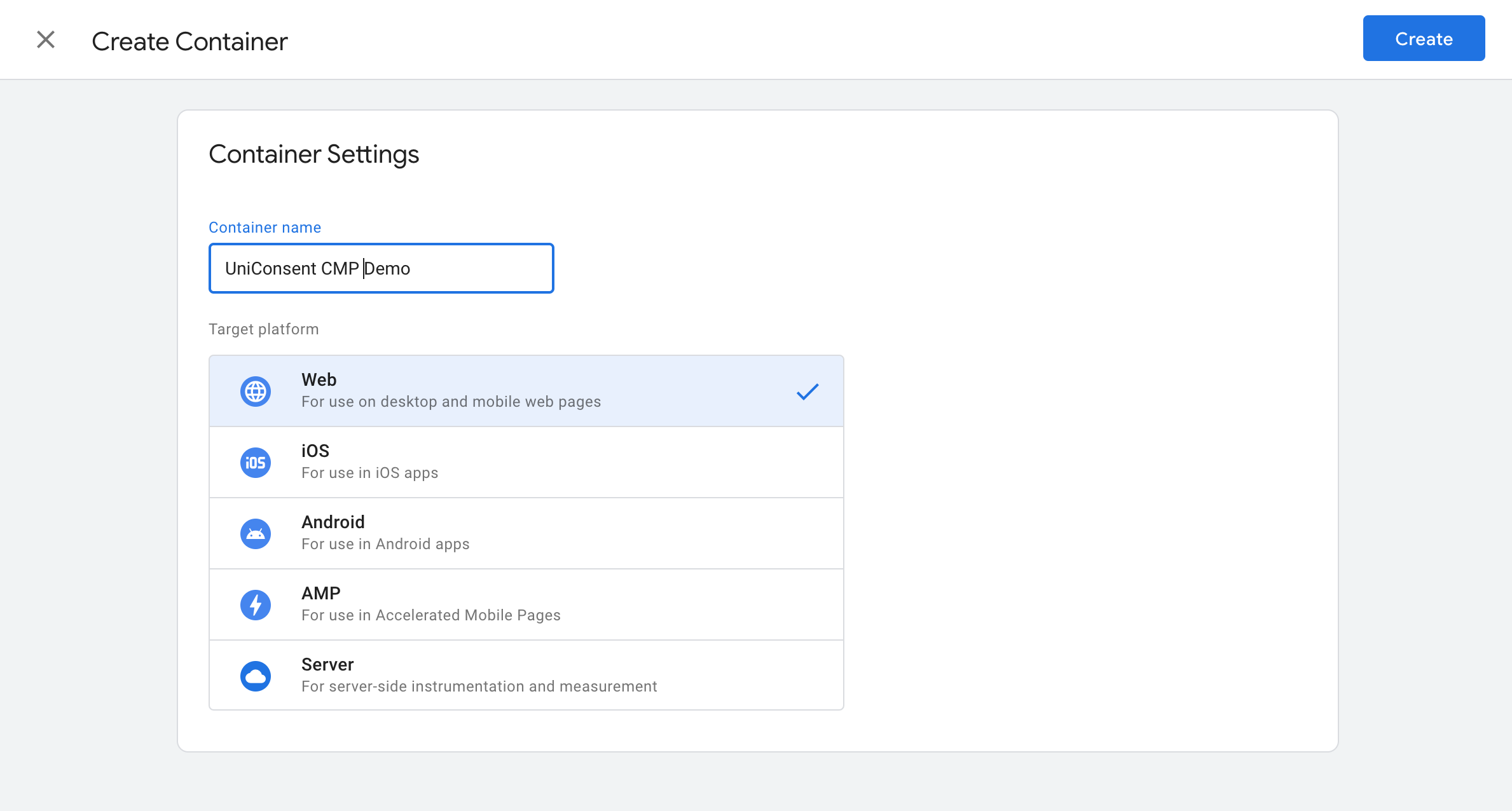 在 Google Tag Manager 中查找或创建容器
步骤 2:添加 UniConsent CMP 代码模板
您可以点击此处找到 UniConsent 代码,或者手动查找。
通过点击 Discover more tag types in the Community Template Gallery 向 Google Tag Manager 容器添加新代码。
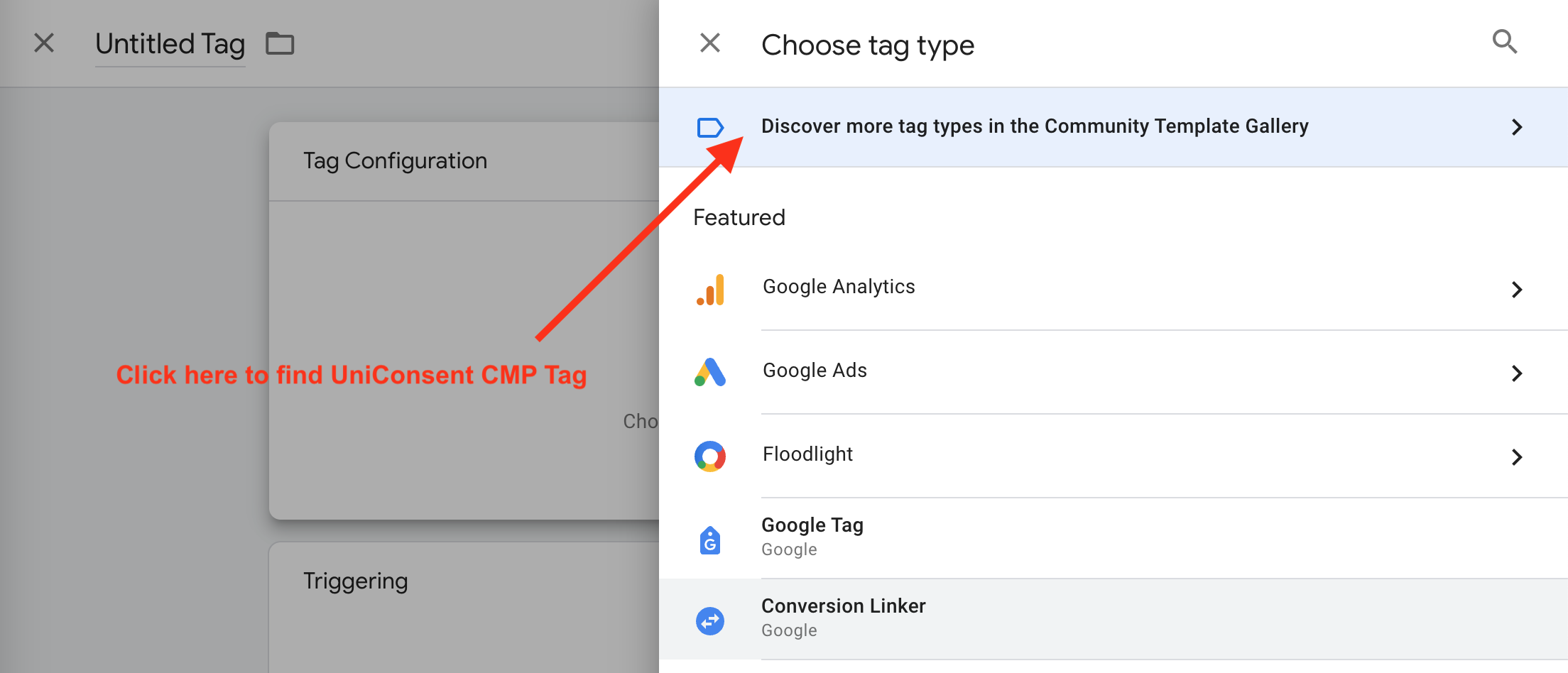 添加 UniConsent CMP 代码
搜索 UniConsent 并将其添加到您的容器中。
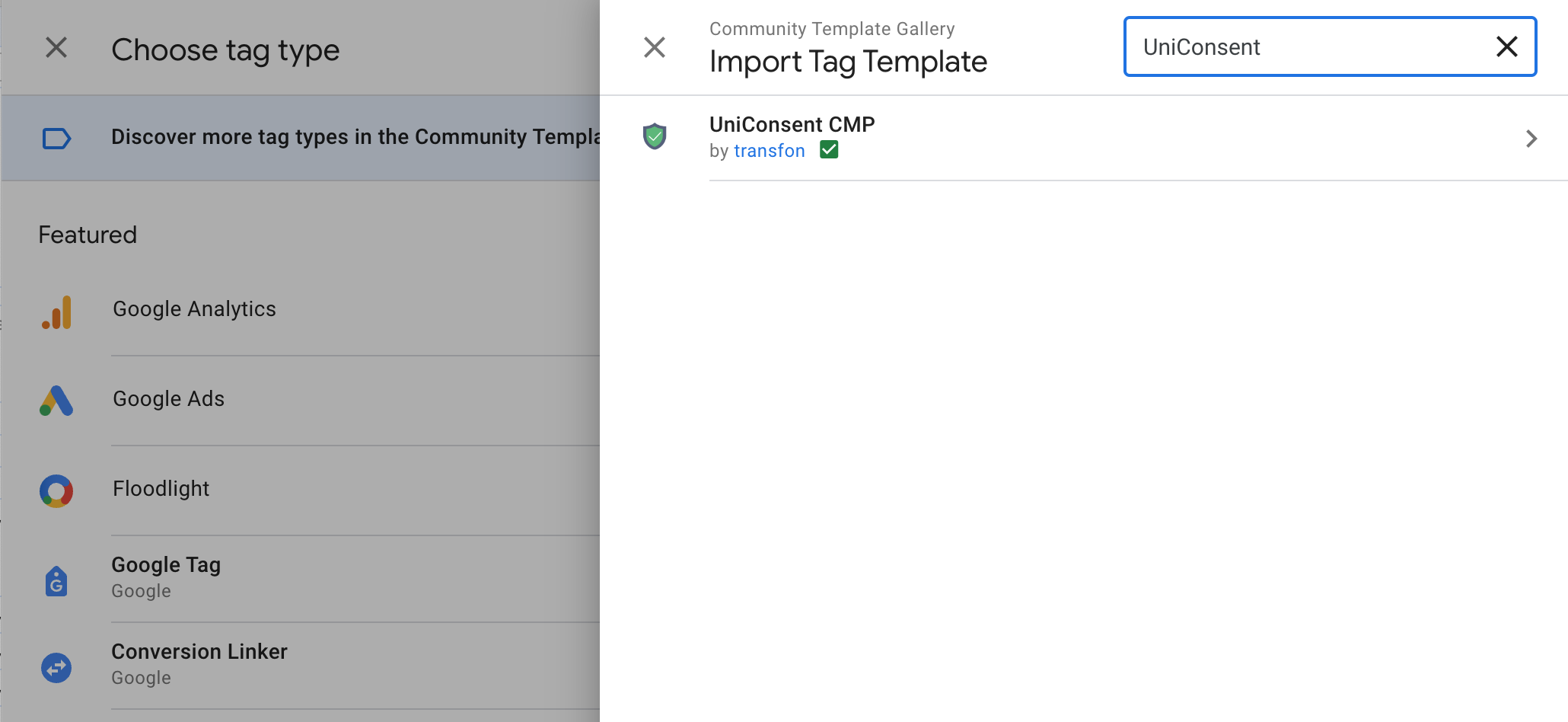 在 Community Template Gallery 中找到 UniConsent CMP 代码模板
步骤 3:输入许可证 ID 配置 UniConsent CMP 代码
触发器应设置为 Consent Initialization - All Pages。
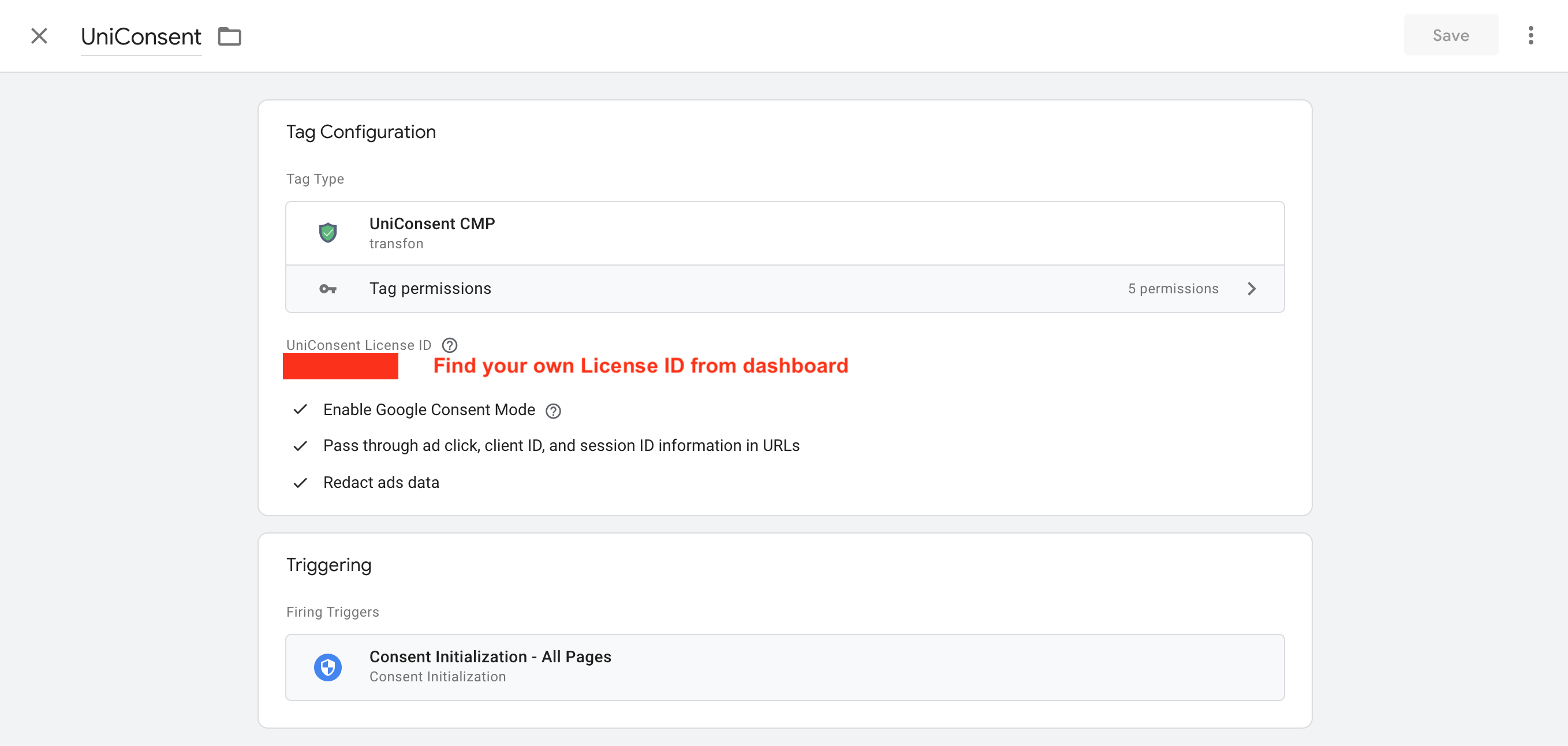 输入许可证 ID 配置 UniConsent CMP 代码
设置 Consent Mode 默认同意状态
如果您使用 Google Tag Manager 且未在页面上手动添加默认同意状态脚本,则必须在 UniConsent CMP 代码配置中设置 Consent Mode Default Consent Settings。根据区域或全局将所有同意类型设置为 false(拒绝),以确保 Google Consent Mode V2 正常运行。
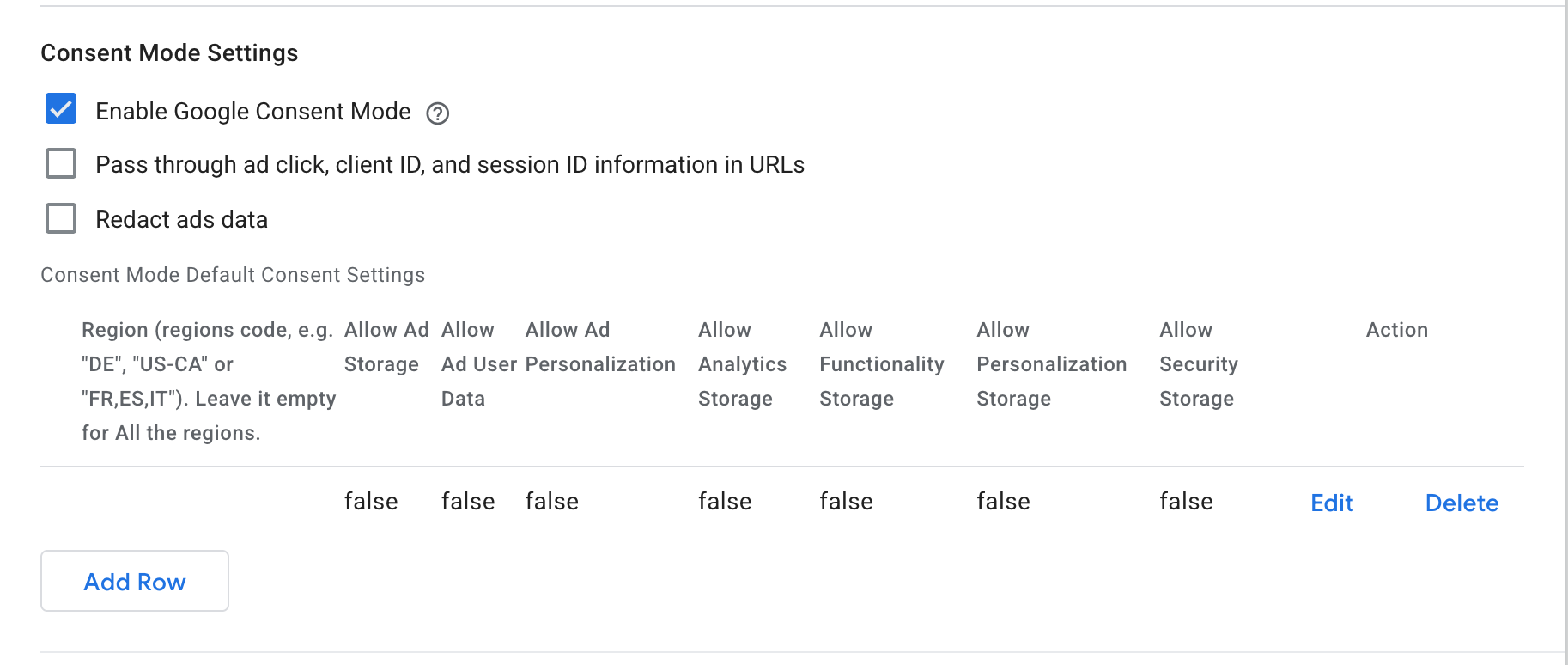 在 UniConsent CMP 代码配置中设置 Consent Mode 默认同意状态
您可以指定区域(例如"DE"、"US-CA"或"FR,ES,IT"),或将区域字段留空以在所有区域全局应用设置。
然后,请记得发布网站上的更改,并根据说明将 Google Tag Manager 代码添加到您的网站。
步骤 4:使用 Google Tag Manager Consent Settings 控制代码
接下来,您可以使用 Consent Mode 信号来管理所有其他代码。
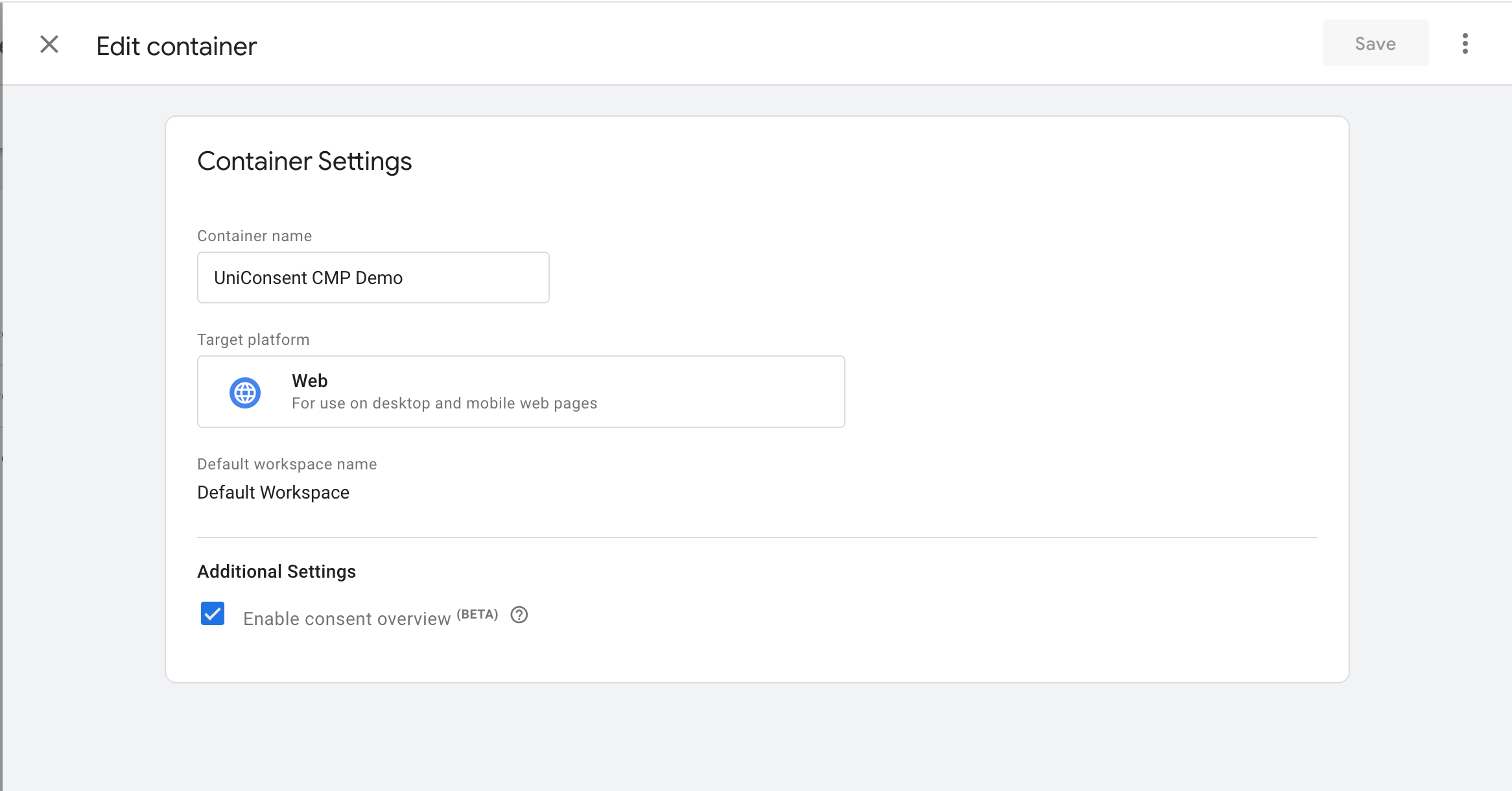 在 GTM 容器设置中启用该功能
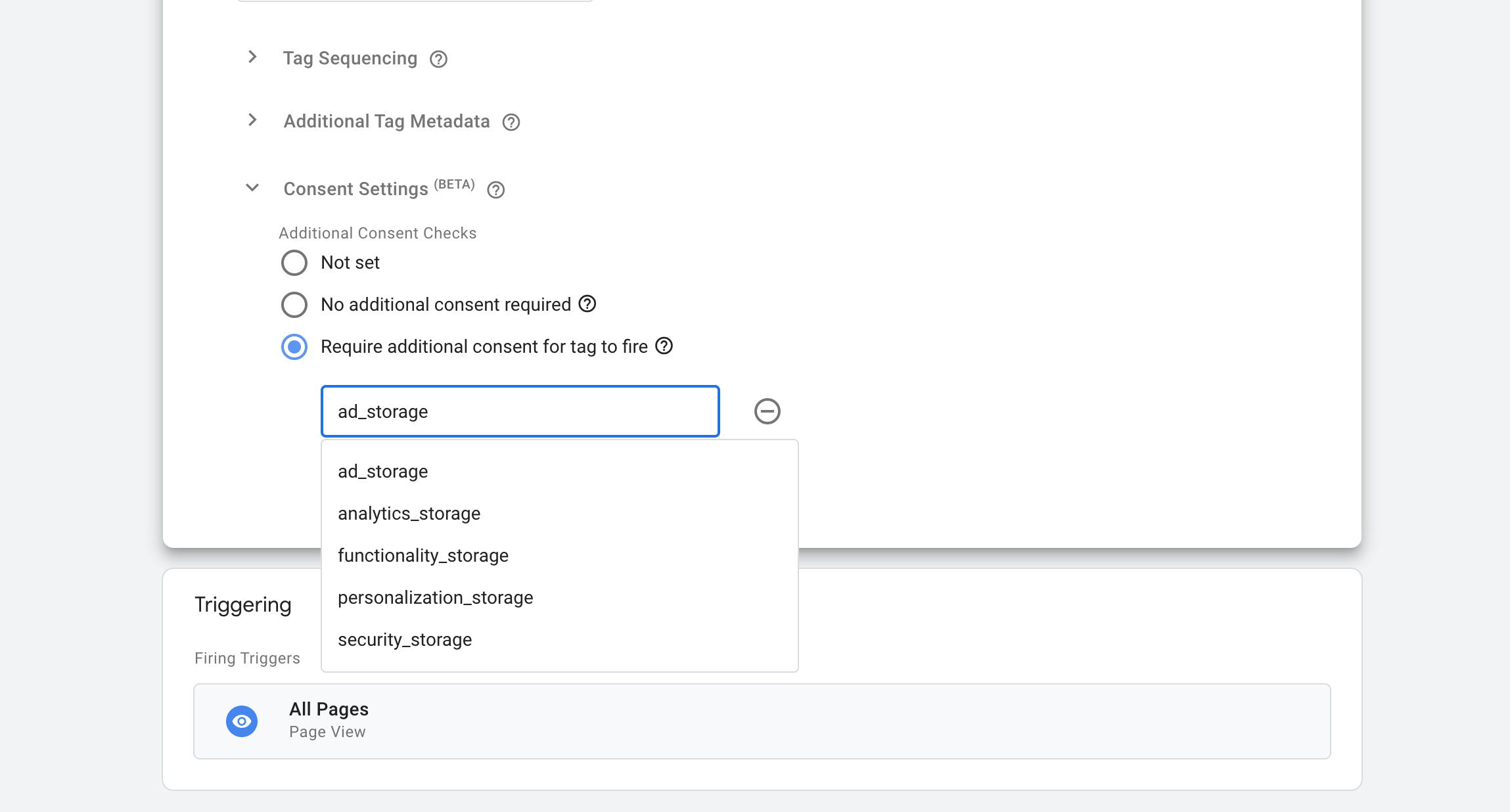 使用 Consent Mode 控制代码加载
设置 Custom Event 触发器 unic_data,该触发器在用户的同意信息可用时触发。然后使用您创建的触发器加载这些第三方代码。
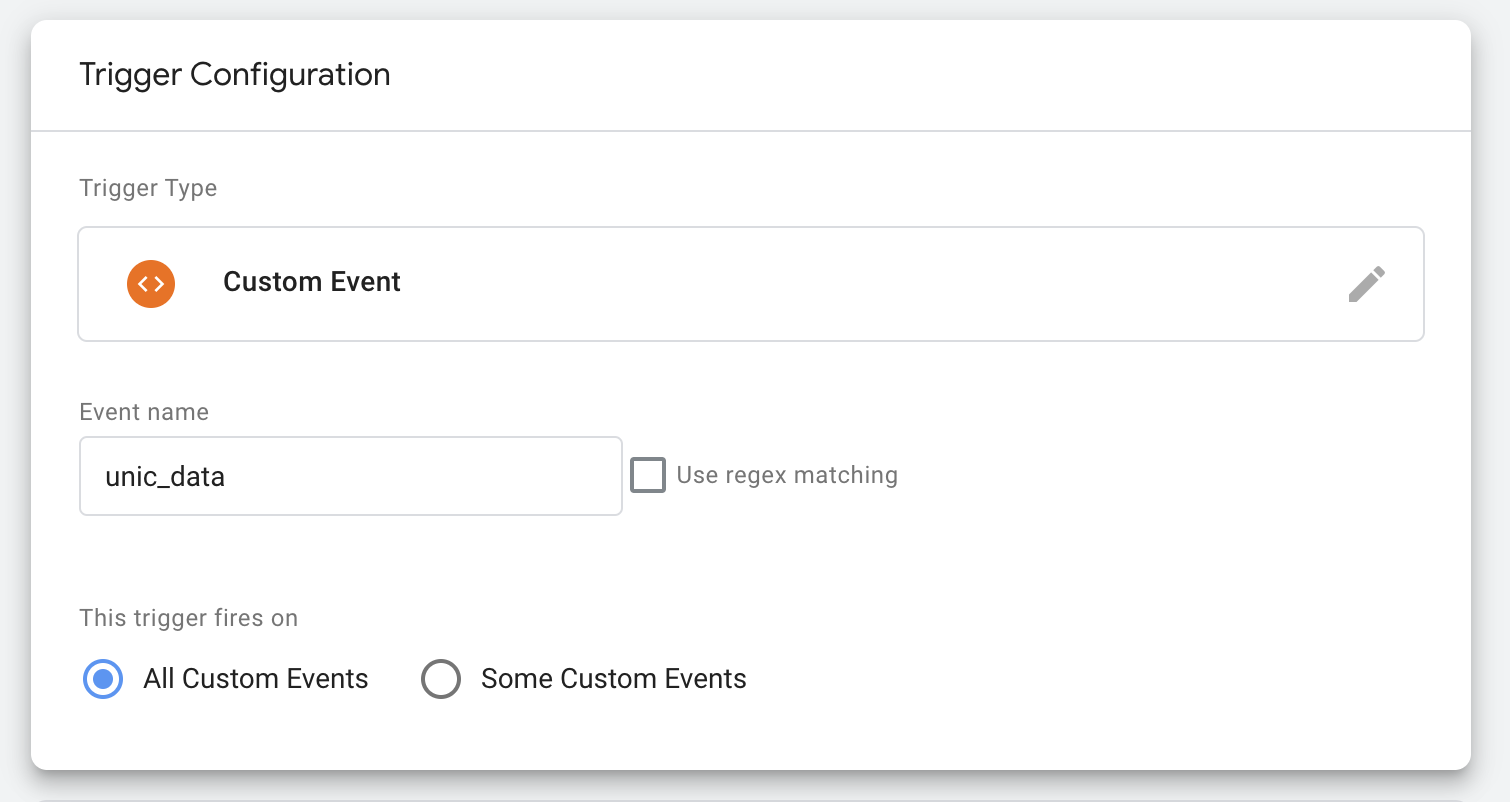 设置 Custom Event 触发器 unic_data
注意:您可以使用 Advanced Consent Mode 管理 Google 代码。Google 代码可以使用 All Pages 触发器加载,无需被同意信号阻止。
排查 Google 代码缺少 Consent Mode 或 TCF 信号的问题
当您遇到 Google 代码缺少 Consent Mode 或 TCF(Transparency and Consent Framework)信号的问题时,请首先联系 UniConsent 支持团队,而不是直接联系 Google。
如果您是 Google 客户,请通过电子邮件 support+google@uniconsent.com 联系我们,或在 UniConsent 支持社区论坛 发帖。UniConsent 支持团队将在 1 个工作日内提供技术回复。
紧急问题请致电 +441134678278。
还有其他问题?
联系我们:support@uniconsent.com 或在控制面板中使用在线客服。