
SiteCore Cookie Consent Banner
Ensure robust data privacy compliance on Sitecore by integrating UniConsent. Seamlessly meet GDPR, CCPA, LGPD, and EU Cookie Law requirements with our solution.



How to setup
1. Get the UniConsent CMP installation code
First, log in to your UniConsent account, go to Consent Manager > My Websites, and click Manage.
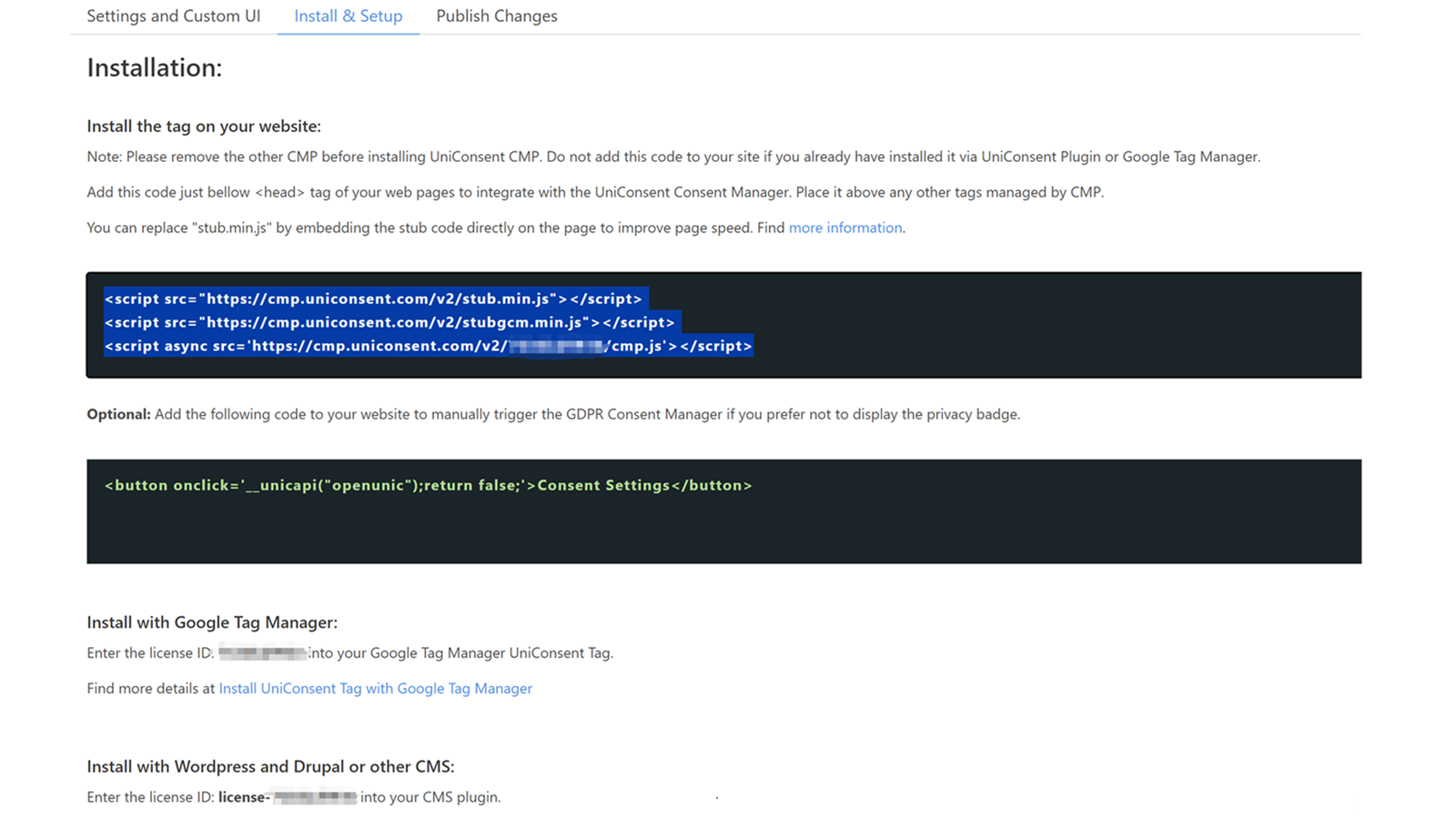
Second, click Install & Setup and copy the CMP code in the black area.
2. Adding the UniConsent Banner to Sitecore
To add the banner, log in to your Sitecore Experience Platform.
In your Sitecore Experience console, click Create variant.
On the Select template page, select Create template, or choose the template where you want to add the UniConsent banner.
In the Code Editor, select the HTML tab.
In the HTML code editor, place the UniConsent CMP code just below the <head> tag.
Finally, click Save in the top-right corner to apply the UniConsent banner site-wide on your Sitecore site.