
Joomla Cookie 同意横幅
将 UniConsent 与 Joomla 集成,实现强有力的数据隐私合规。无缝添加 Cookie 合规横幅,满足 GDPR、CCPA、LGPD 和欧盟 Cookie 法的要求。





如何设置
使用 UniConsent 扩展进行设置
1. 登录 Joomla 管理后台并安装 UniConsent 扩展
Open your Joomla site’s administrator panel (usually yourdomain.com/administrator) and log in with your credentials.
Go to the Extensions Manager. From the top menu, navigate to Extensions → Manage → Install.
Download the UniConsent Joomla Extension at: https://www.uniconsent.com/plugin/uniconsent-joomla-25.10.0.zip.
If you already downloaded the extension (e.g., UniConsent), click Upload Package File. Browse your computer for the downloaded .zip file and click Upload & Install.
手动设置 UniConsent 标签
1. 获取 UniConsent CMP 安装代码
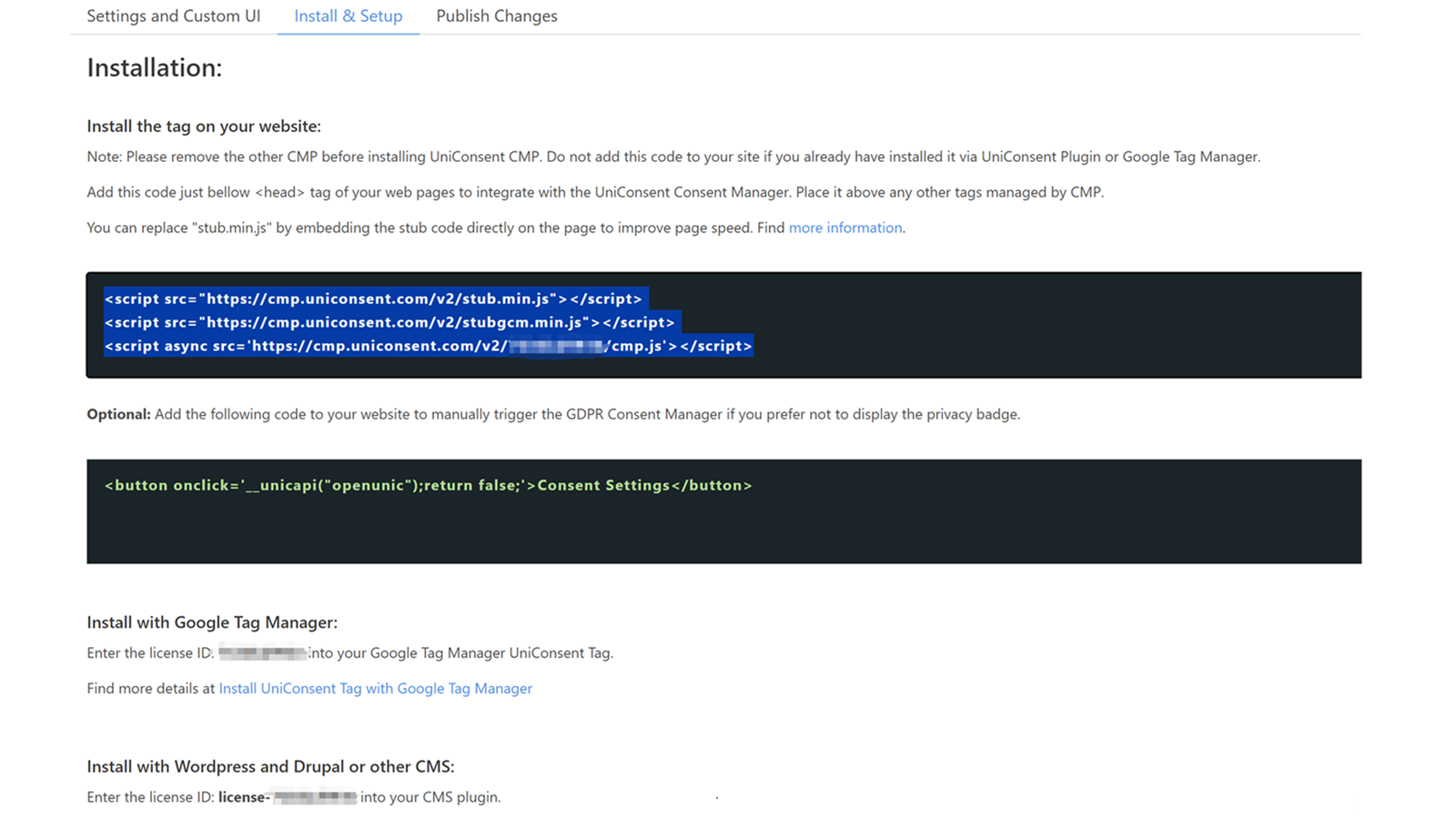
First, log in to your UniConsent account, go to Consent Manager > My Websites, and click Manage.
Second, click Install & Setup and copy the CMP code in the black area.
2. 将 UniConsent 横幅添加到 Joomla
To add the banner, login to your Joomla admin
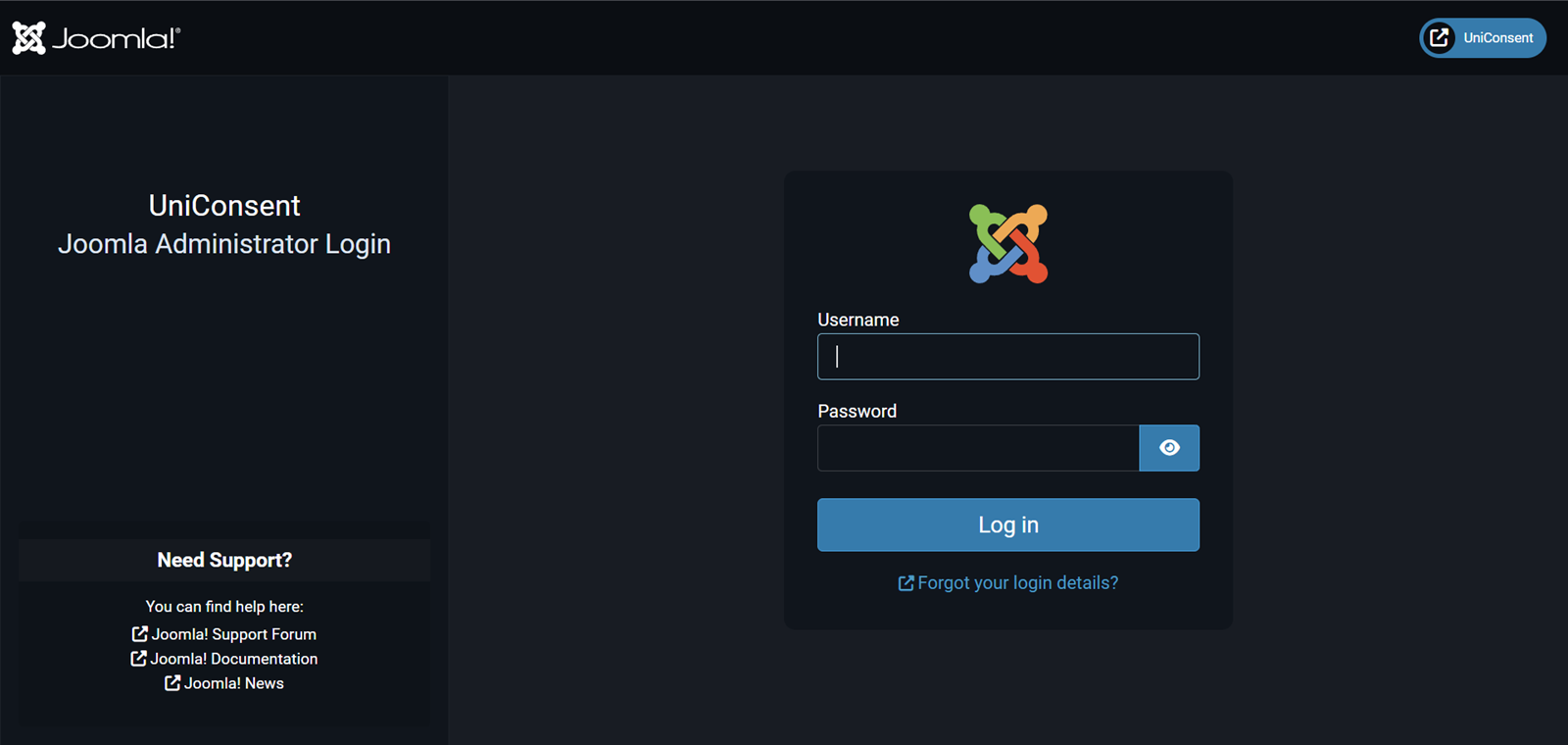
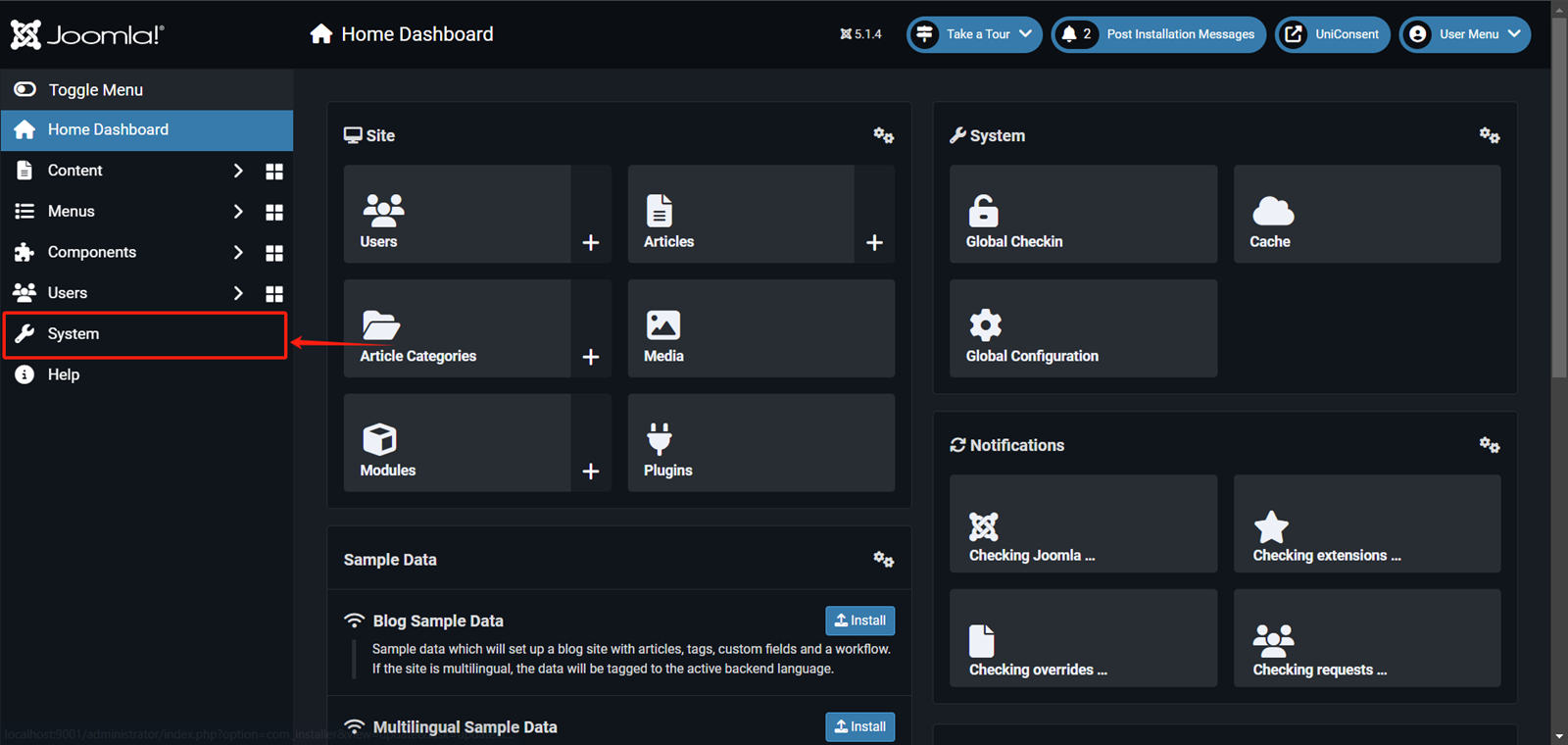
On your Joomla home dashboard, click System from the left sidebar.
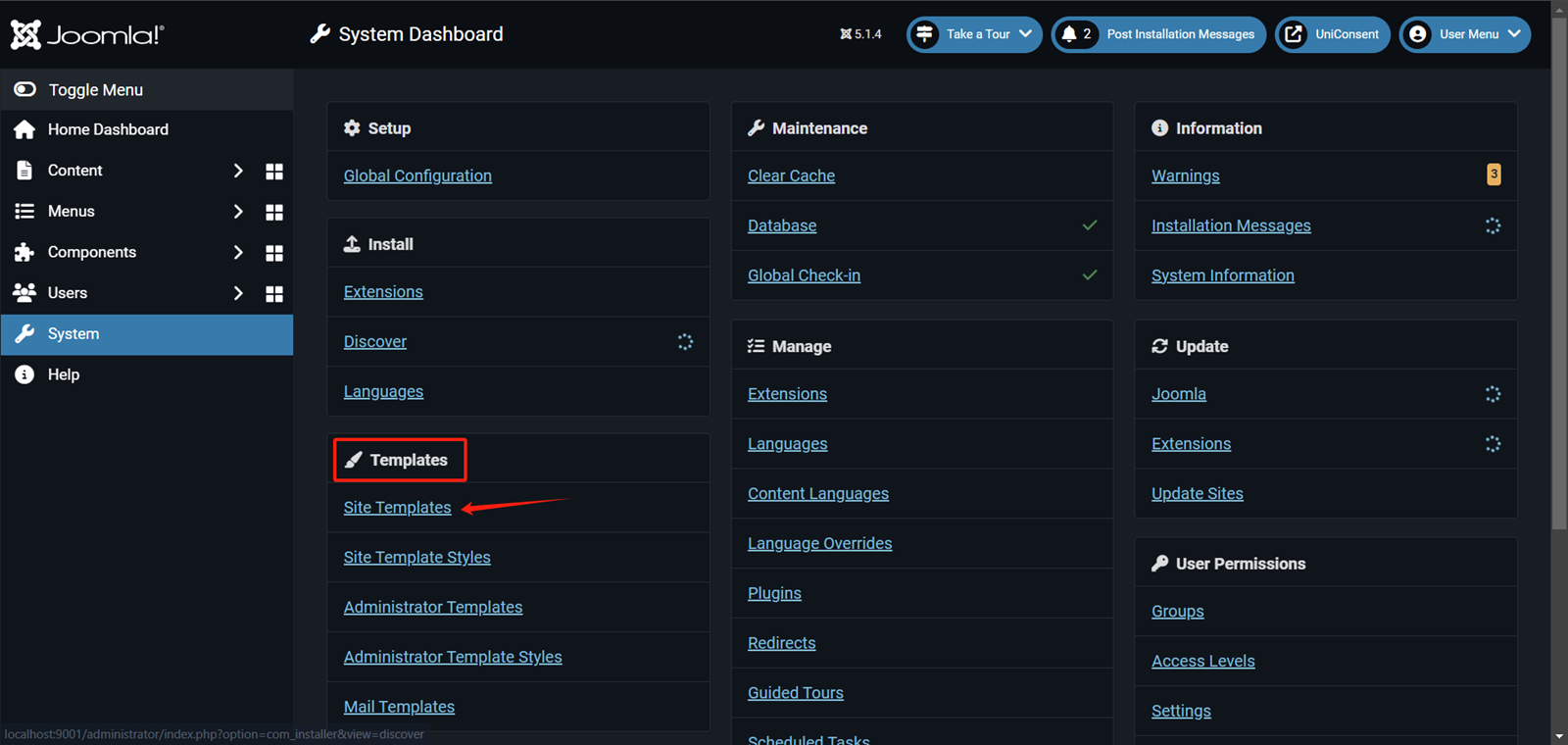
On your Joomla system dashboard, click Templates > Site Templates.
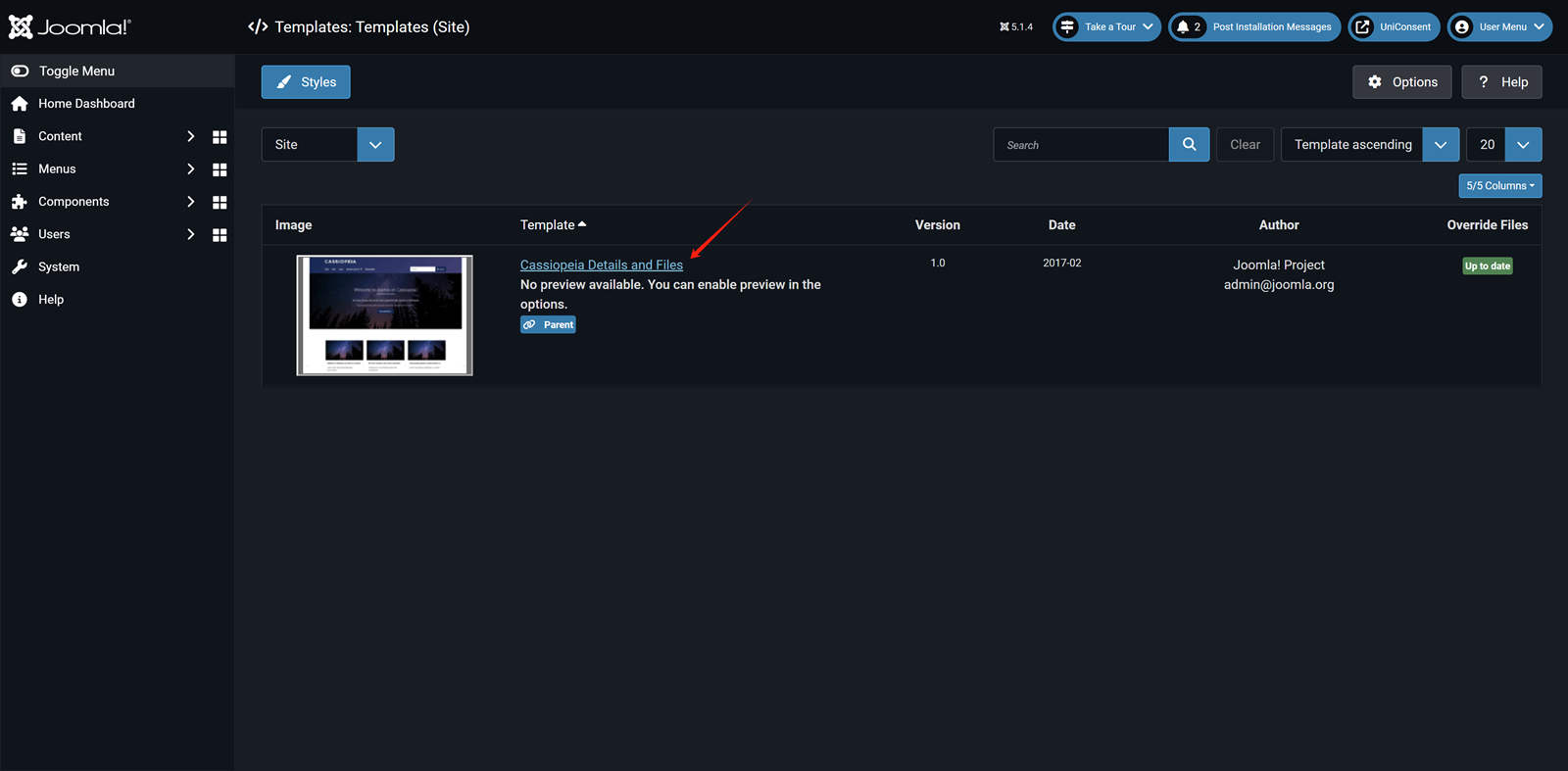
On the Select template page, choose the template where you want to add the UniConsent banner.
On the Theme edit page, click on index.php from the theme files.
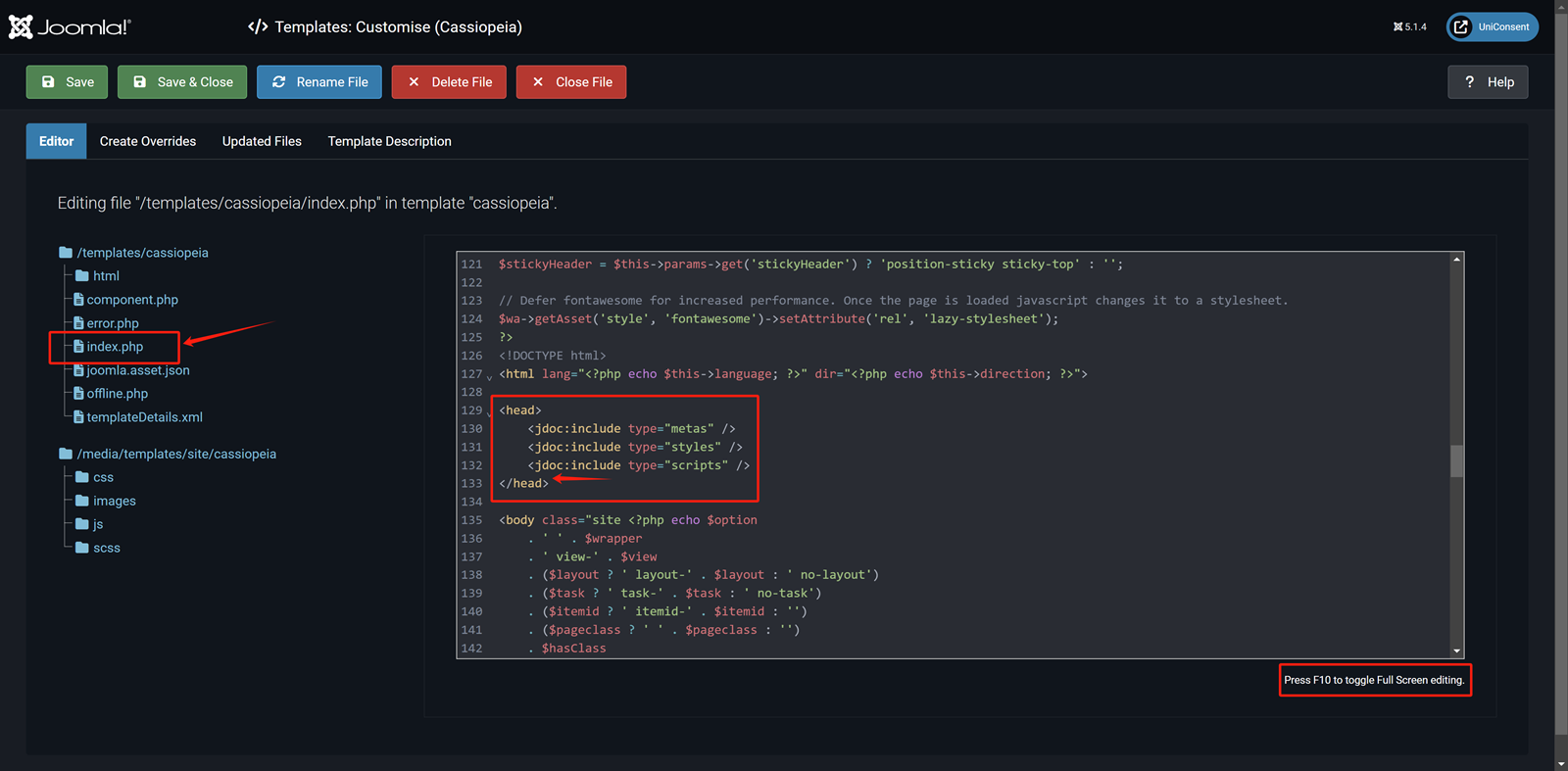
In the Code Editor paste the UniConsent CMP code into the Head section.
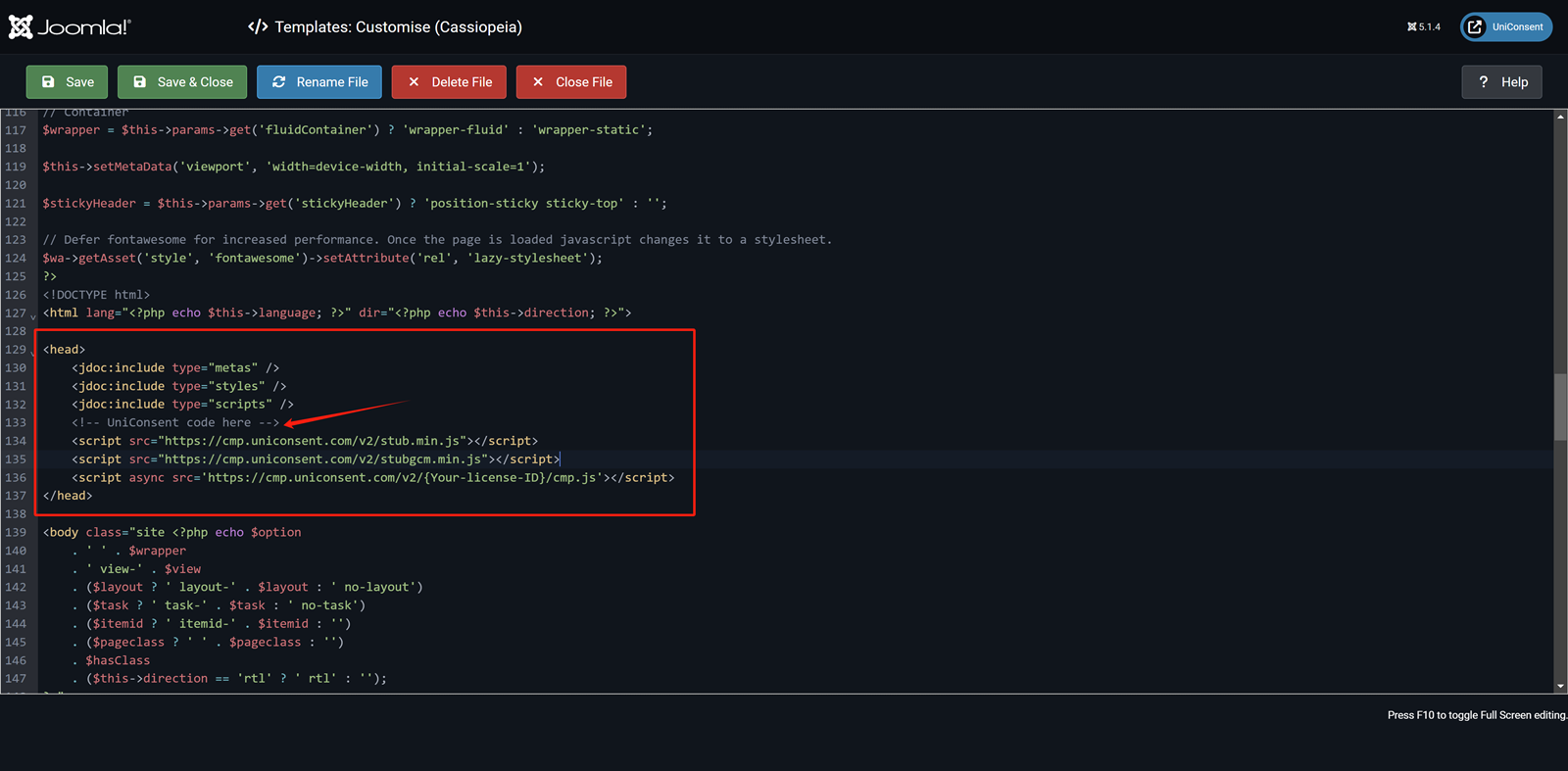
Finally, click Save in the top-left corner to apply the UniConsent banner site-wide on your Joomla website.