
Google Tag Manager Cookie 同意横幅
通过无缝集成 UniConsent,简化您在 Google Tag Manager 中的合规工作。轻松为您的网站添加 Cookie 同意横幅,确保遵守 GDPR、CCPA、LGPD、欧盟 Cookie 法,并支持 Consent Mode 要求。


包含内容
Implementation instructions for deploying the UniConsent Consent Management Platform for UniConsent web application users using Google Tag Manager container tags. This article details the steps to create a GTM account, install the tracking code, and import and configure the UniConsent label template.
This guide will show you how to:
1. Implement the cookie consent banner in Google Tag Manager
2. Control cookie-setting tags in Google Tag Manager
3. Google Consent Mode V2 for Google Tags
The guide will also explains how to customize consent banner values, map key triggers, and block third-party scripts loaded through GTM.
如何设置
You can easily set up the UniCosent CMP Tag on your website via Google Tag Manager using the UniConsent CMP Tag Template for GTM.
It is recommended to set up UniCosent CMP via Google Tag Manager if you are managing all your other tags with Google Tag Manager.
Google Tag Manager loads the UniCosent CMP Tag with the Consent Initialization - All Pages trigger. Then, use Consent Mode signals provided by the UniConsent CMP Tag to load your other tags in GTM.
1. 找到 UniConsent CMP 许可证
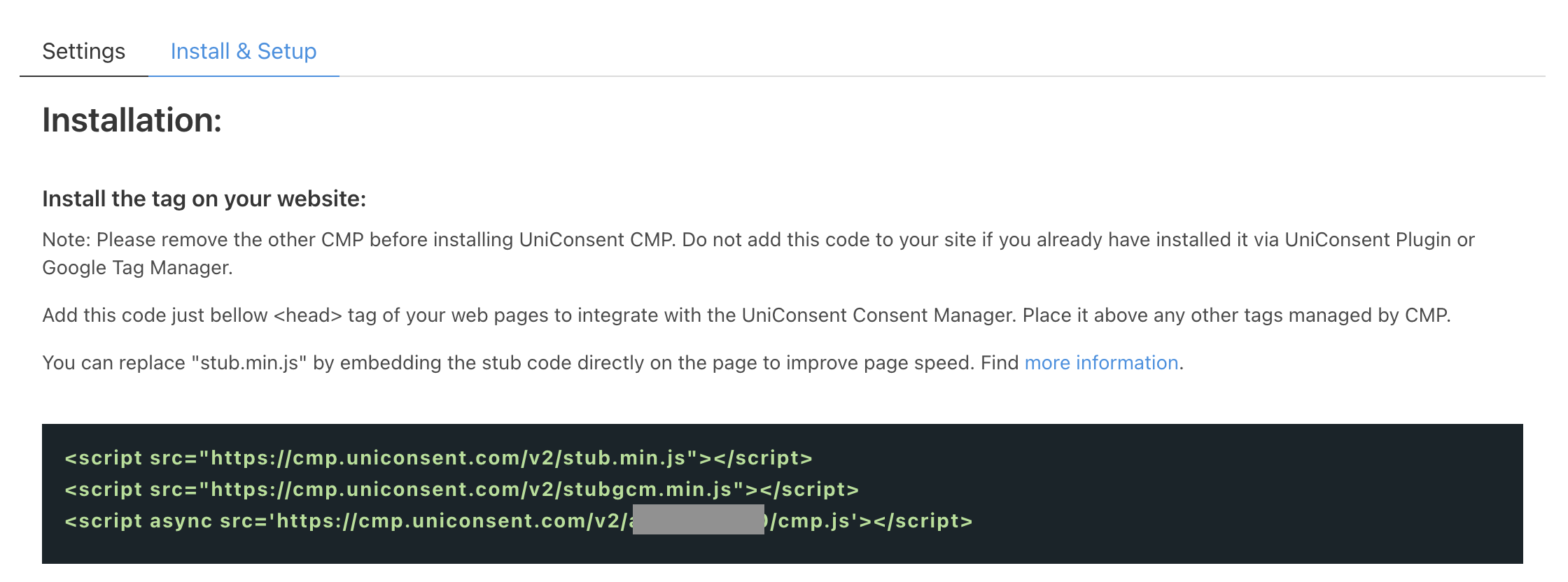
First, login to your UniConsent account, go to Consent Manager > My Websites, click Manage.
Second, click Install & Setup and find UniConsent CMP License to be used in Google Tag Manager.
2. 在 Google Tag Manager 中实施 Cookie 横幅
First, Sign Up / Create a Google Tag Manager account. Find the Google Tag Manager container for your website, or create one if you are new to Google Tag Manager.
In Tag Manager, click the Accounts tab > Create Account.
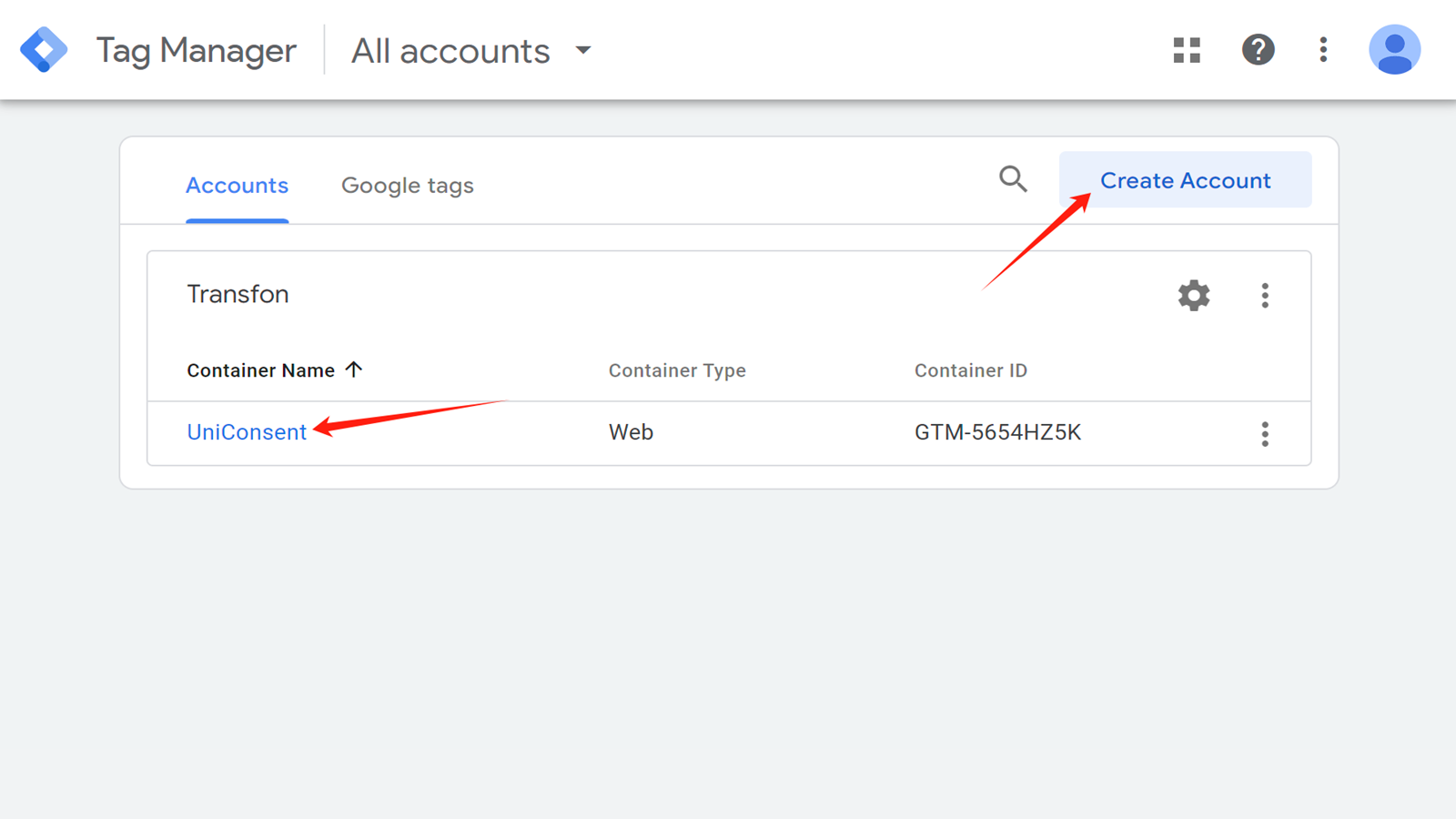
Enter an Account Name and select the Country for the account.
Enter the Container name and select the container type.
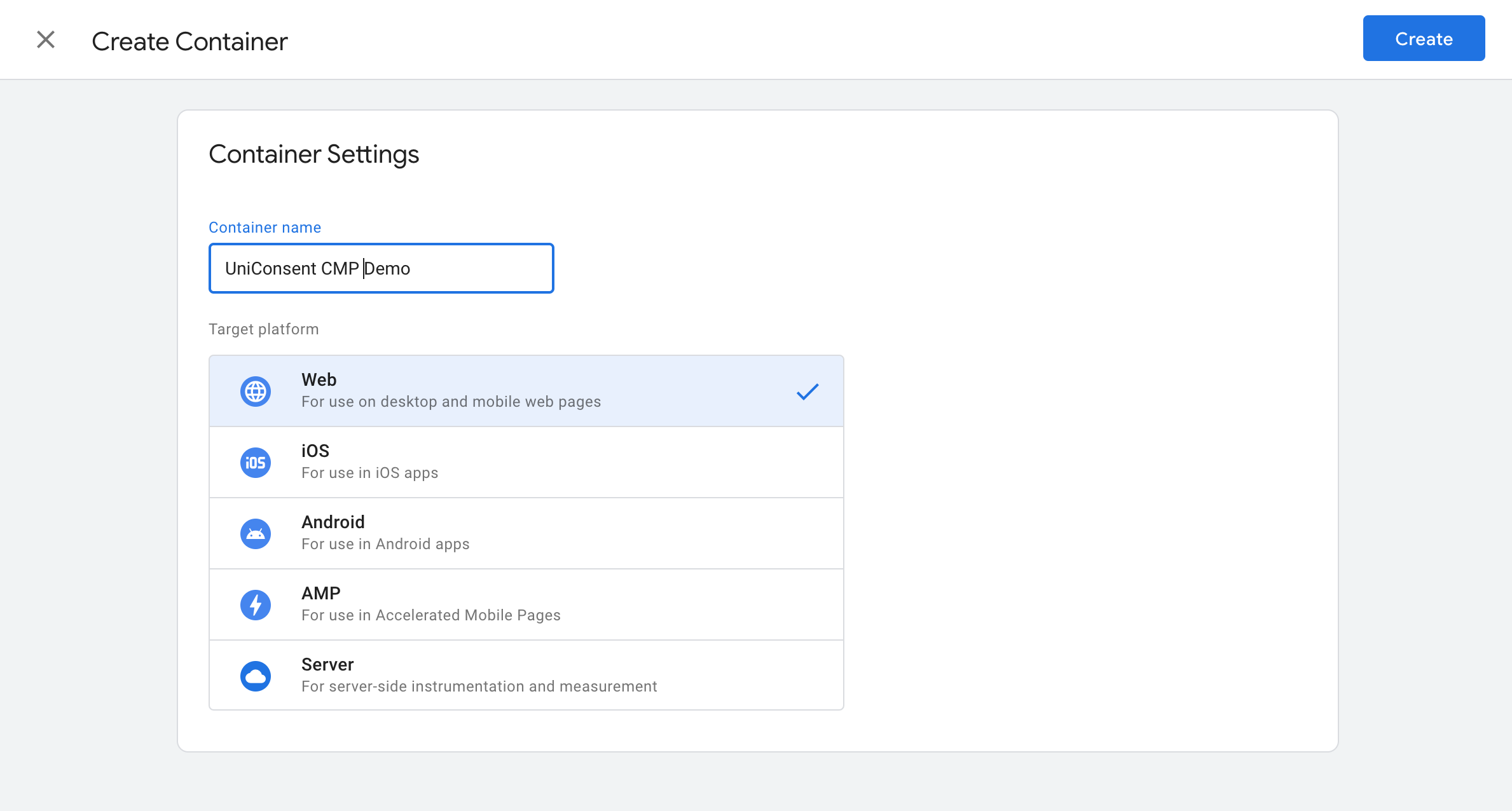
To create your container, click Create and agree to the Terms of Service.
Once the container is created, a modal will appear with two snippets of code to install on your site.

Copy and paste the first part of the container tag immediately after opening the head tag of your website and the second part of the second iframe part immediately after the opening of the body tag.
Then it's time to adding UniConsent CMP Template
2. 查找或添加 UniConsent CMP 模板
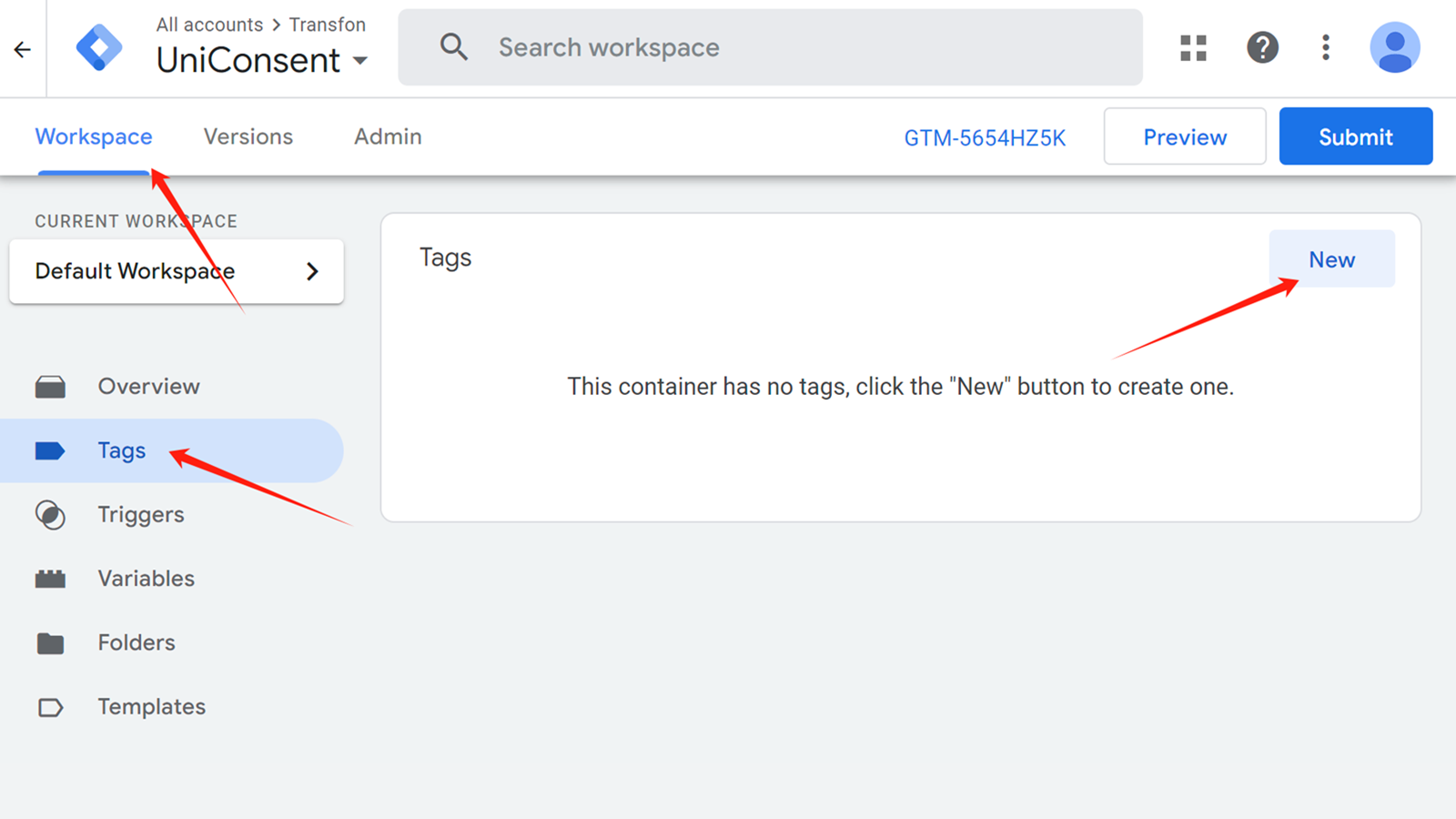
To add a tag, in Workspace > Tags click New.
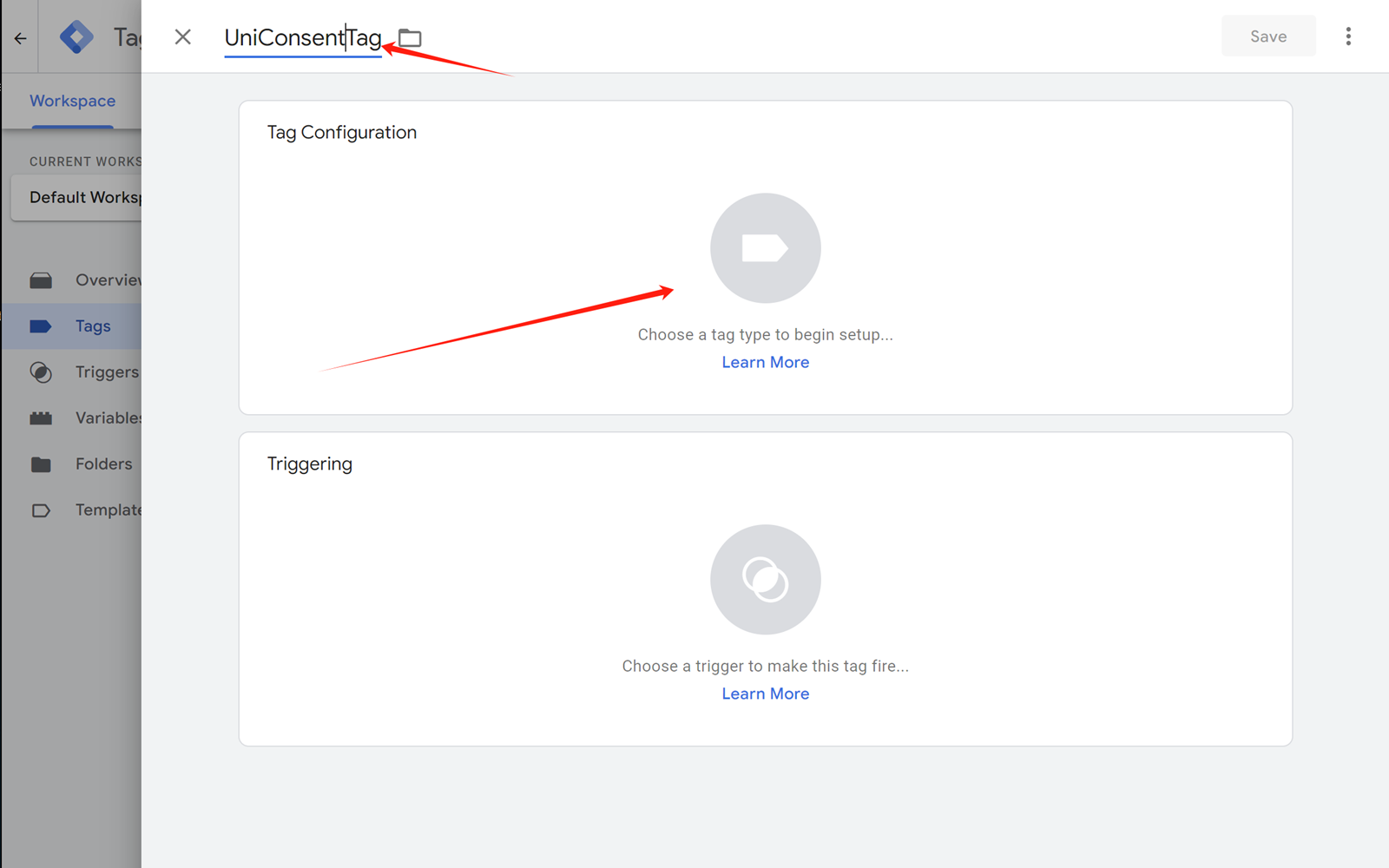
Enter the tag name and Click on Tag Configuration
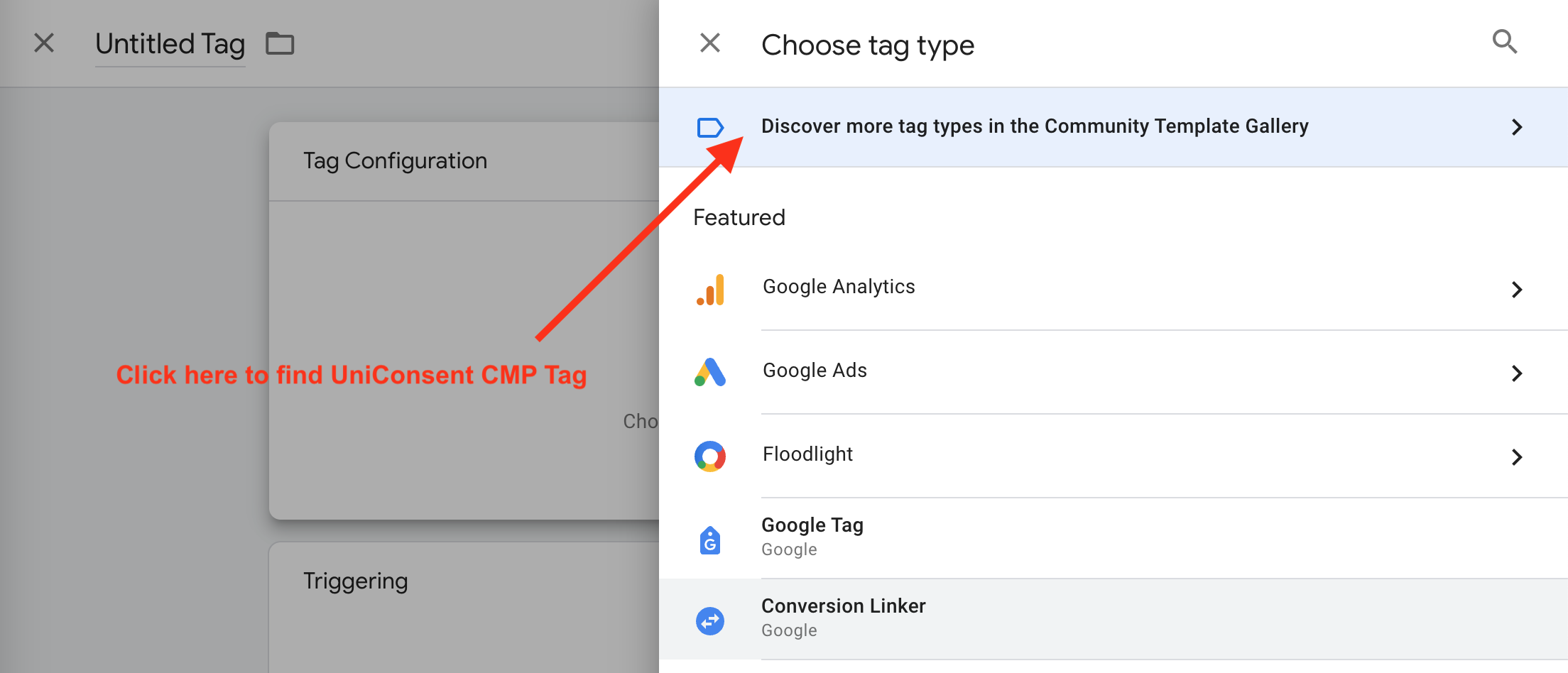
You can find the UniConsent Tag by clicking here or locate it manually.
Add a new tag to the Google Tag Manager container by clicking Discover more tag types in the Community Template Gallery.
Search for UniConsent and add it to your container.
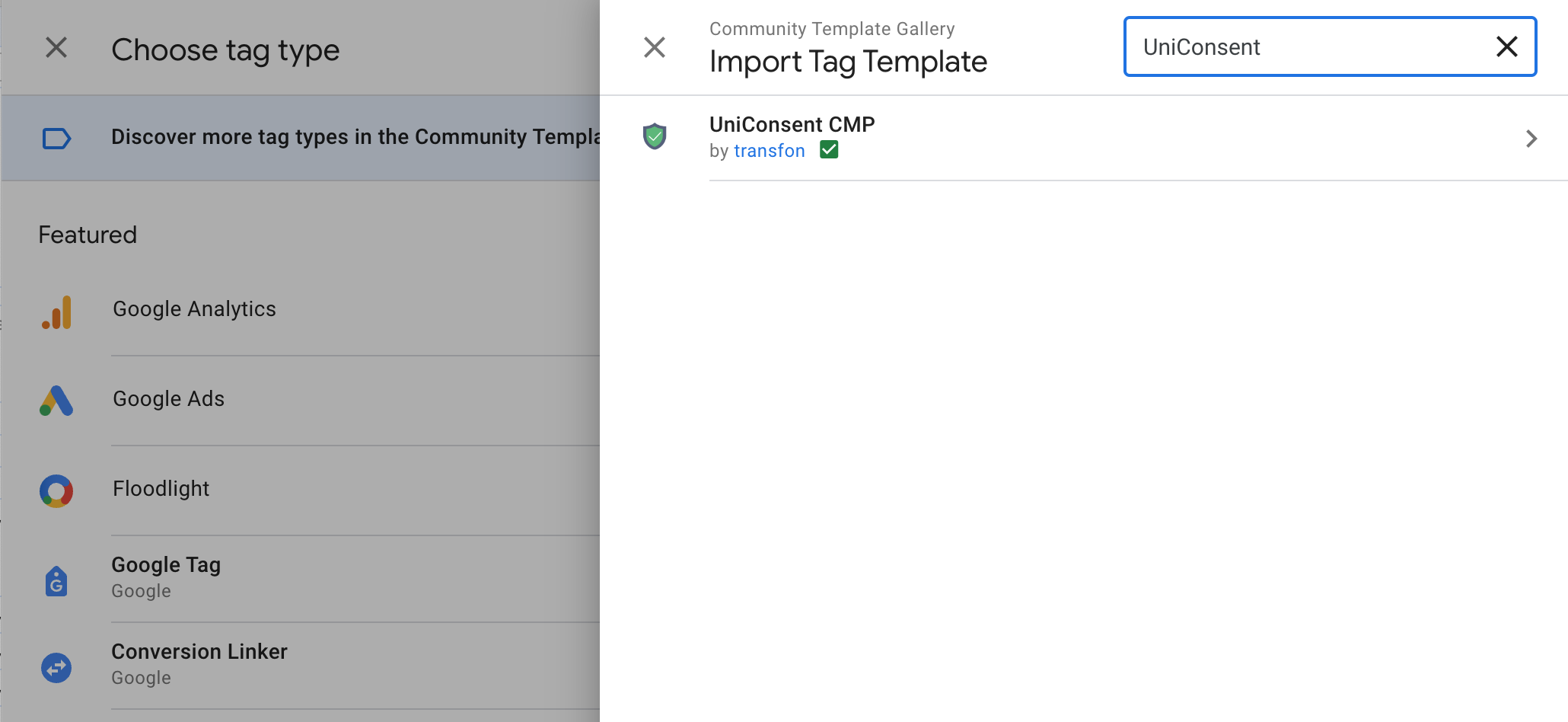
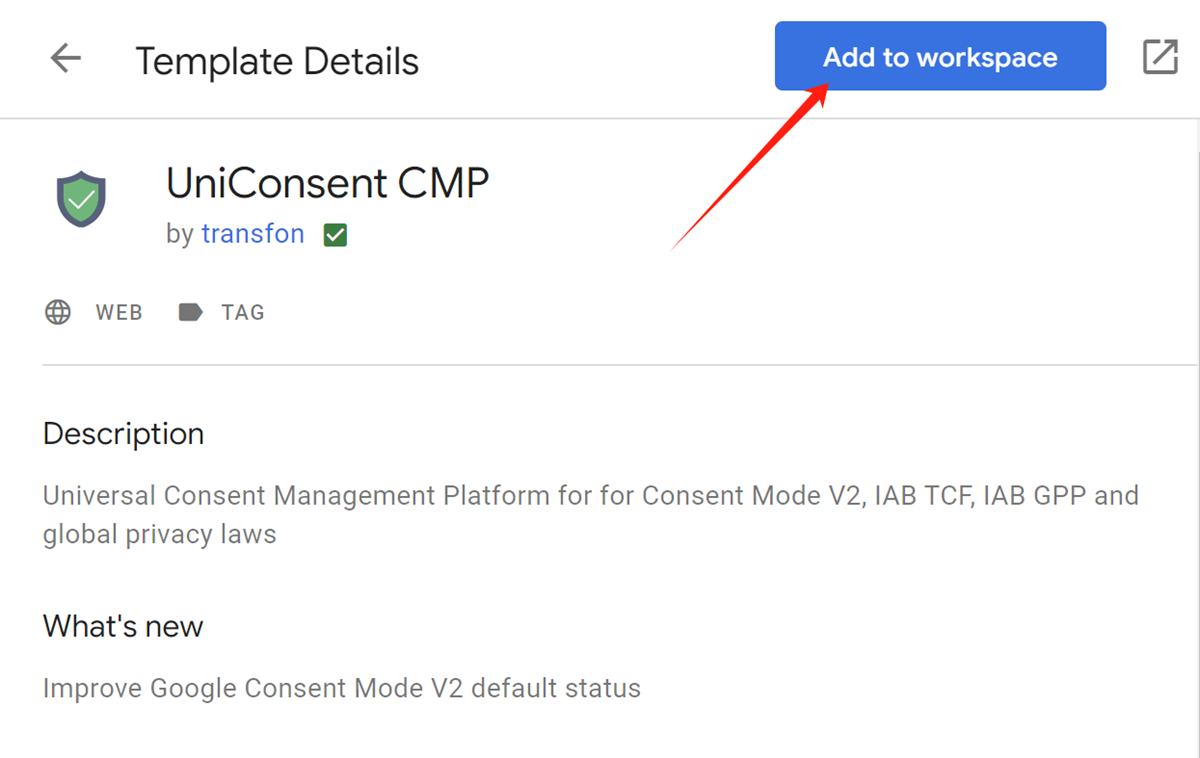
Choose the UniConsent CMP template and click Add to workspace > Add to add it to your GTM installation.
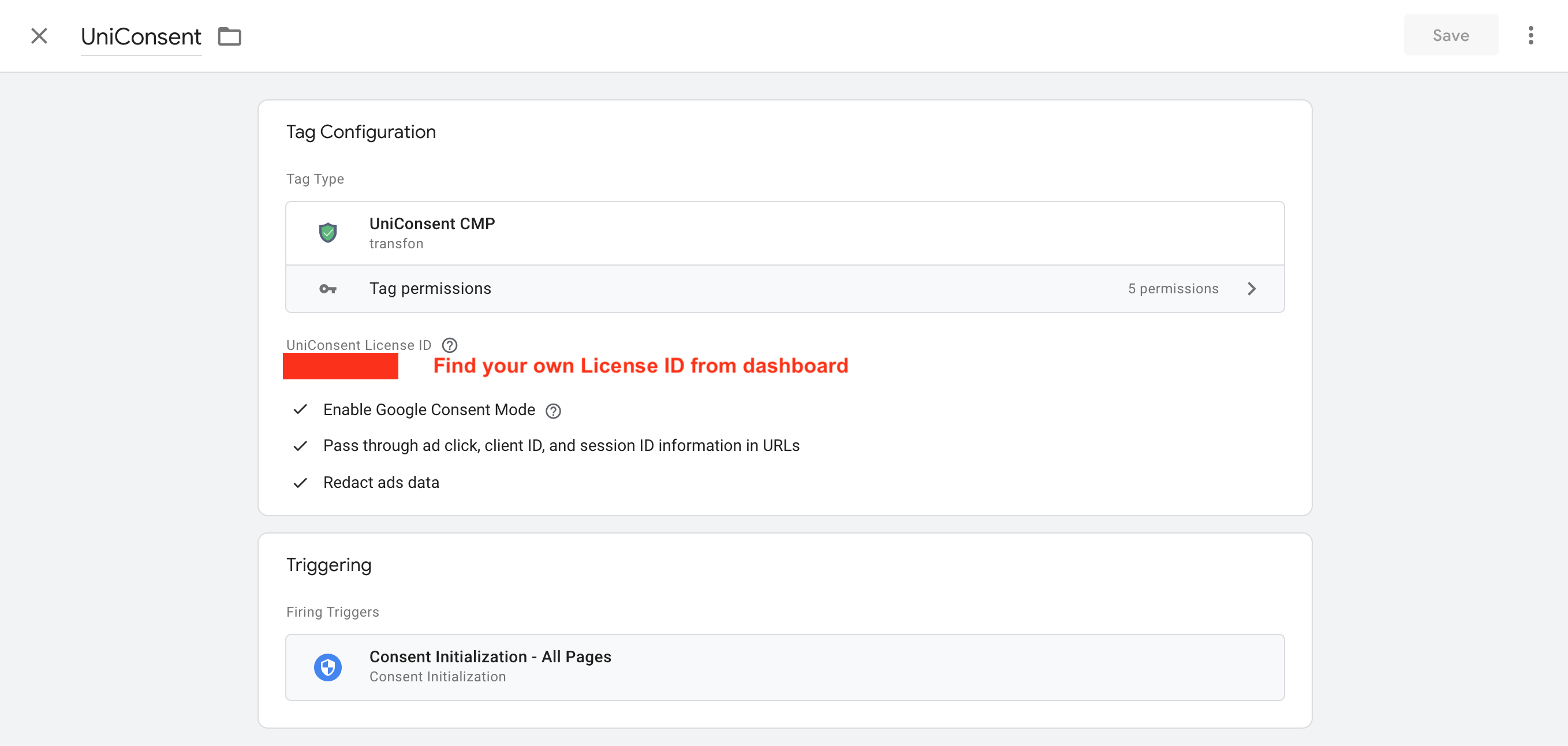
Use the Configuration tab to select a banner configuration based on your needs. Enter your site UniConsent License ID to set default consent settings and other settings.
The trigger should be Consent Initialization - All Pages.
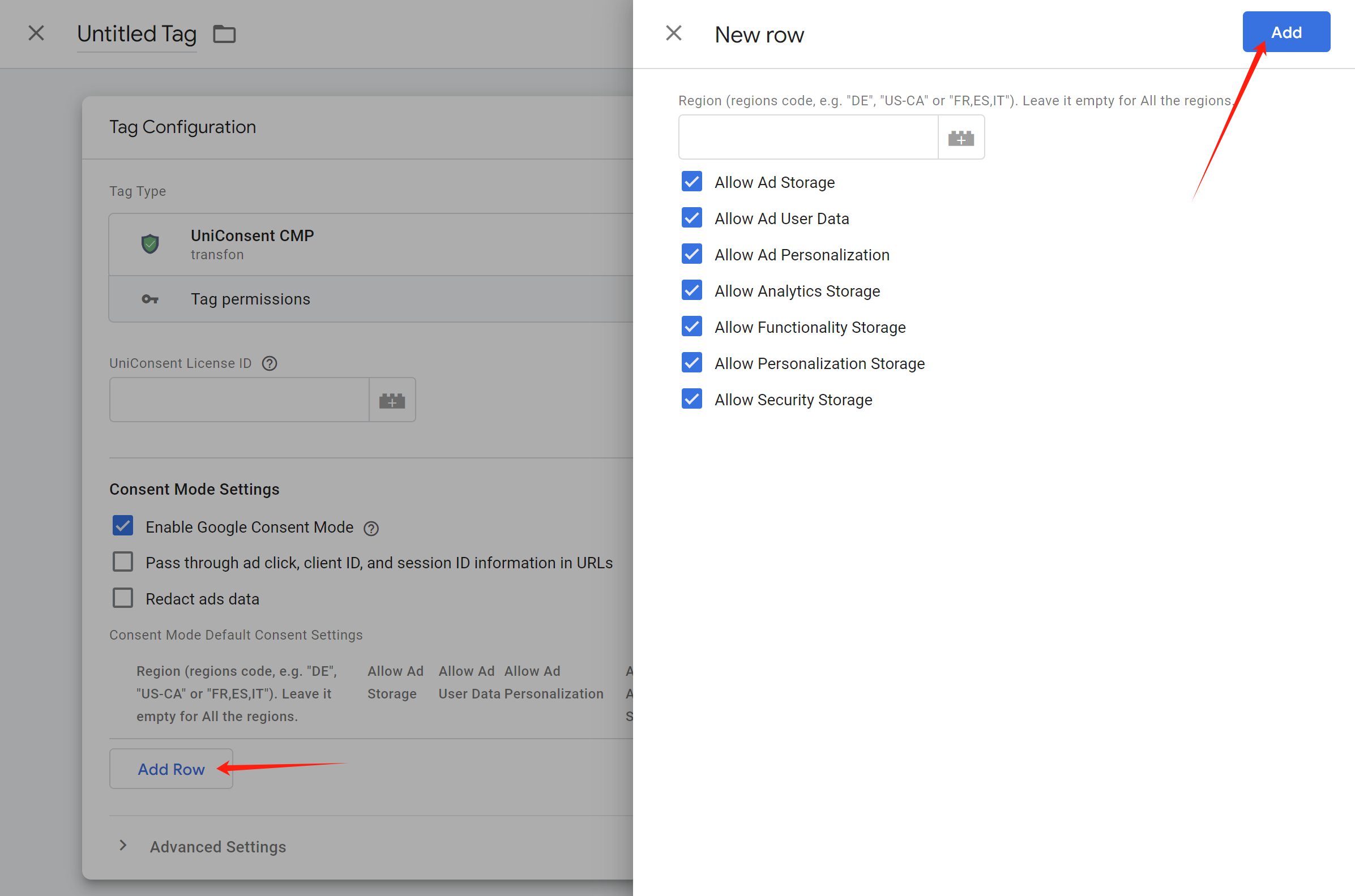
To add Default Consent Setting:
First, click Add Setting.
Second, depending on your requirements, select Enable/Deactivate from the drop-down list for each cookie category.
Set the region by entering the ISO standardized (ISO 3166-2) code for the specific region you want to geo-target with the banner. If you don't want your banner ads to target specific regions around the world, leave it empty for All the regions.
See the ISO 3166-2 standard for the corresponding region codes.
Then, click Add.
Finally, remember to publish the changes on your website and add the Google Tag Manager tag to your site based on the instructions.
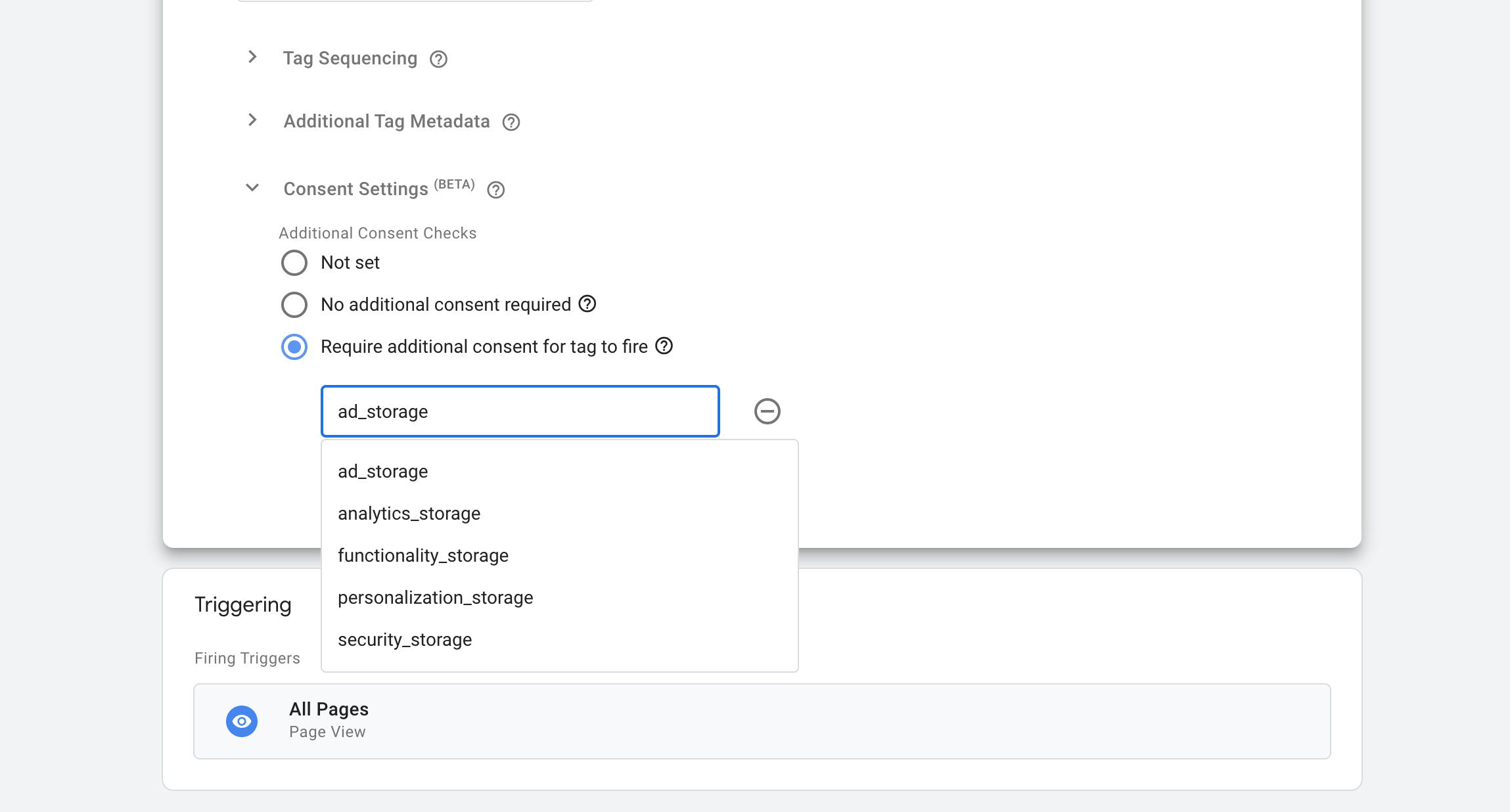
3. 使用 Google Tag Manager 同意设置控制标签(基本模式)
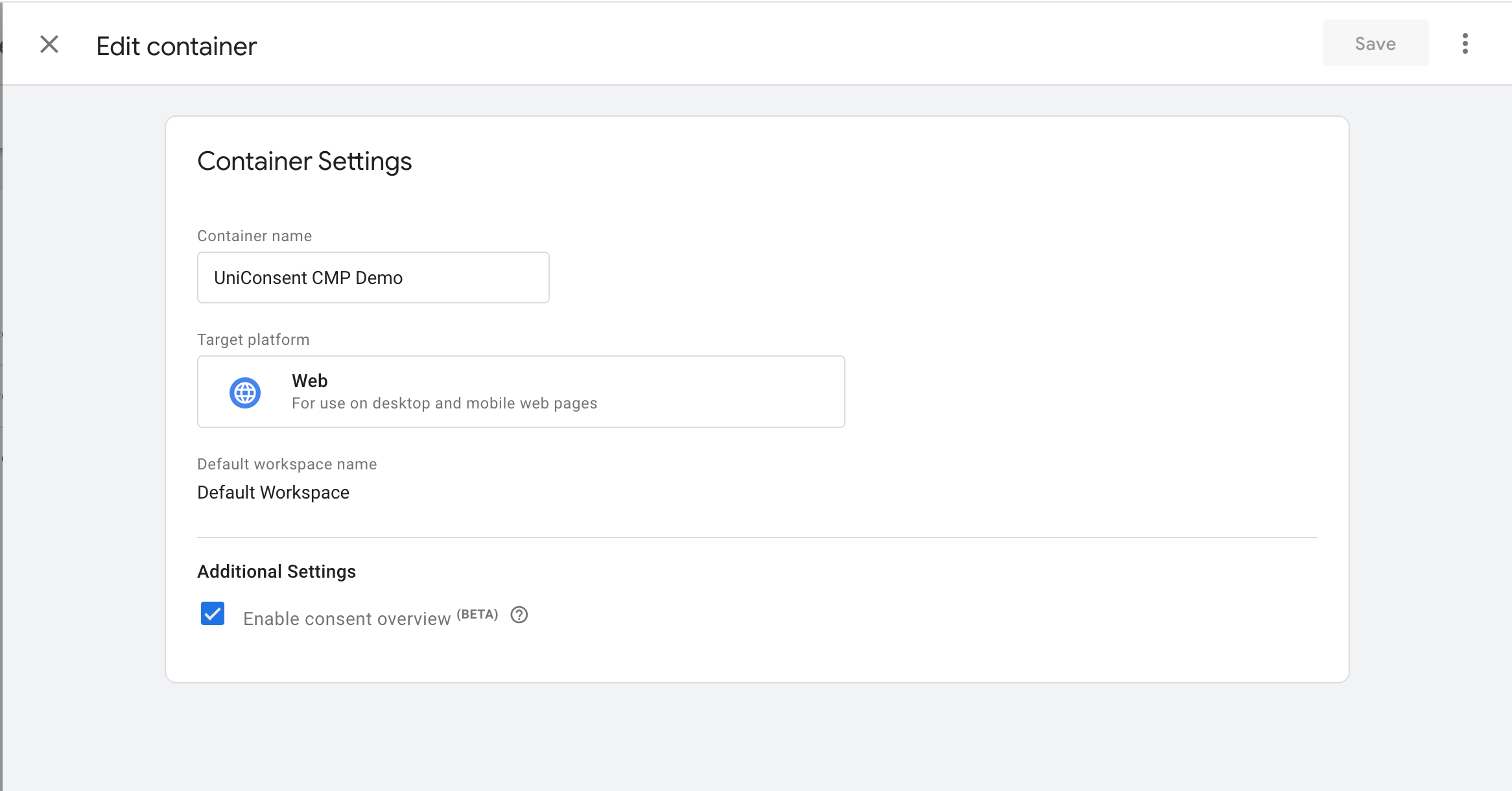
Then you can use Consent Mode signals to manage all the other tags.
4. 适用于 Google 标签的 Consent Mode V2 高级同意模式
Consent Mode V2 Advanced Consent Mode allows website owners to tailor tag and cookie behaviours based on various consent states. In Advanced Consent Mode, Google Tags load before your consent banner appears. The consent banner collects the user’s consent status, which is then detected by Consent Mode and communicated to your Google Tags, enabling them to adjust their behaviour accordingly.
Google Tag Manager 默认同意类型
用于启用与广告相关的浏览器存储(例如 Cookie)。
用于启用广告 Cookie,以设置向 Google 核心平台服务发送个人数据的同意。
用于启用将个人数据用于广告目的,例如再营销或基于兴趣的定向投放。
用于启用与分析相关的浏览器存储(例如 Cookie),如访问时长。
用于启用支持网站或应用功能的浏览器存储,例如语言设置。
用于启用与个性化相关的浏览器存储。
用于启用与安全相关的浏览器存储,例如身份验证功能、欺诈防范和其他用户保护。用户将在 Cookie 声明中被告知具体的存储目的,但此类型无需获得最终用户的同意。