
Banner de Consentimiento de Cookies para BigCommerce
Integra UniConsent con BigCommerce para una experiencia de comercio electrónico conforme a la normativa. Cumple fácilmente con los requisitos del RGPD, la CCPA, la LGPD y la Ley de Cookies de la UE gracias a nuestra integración sin complicaciones.

Cómo configurarlo
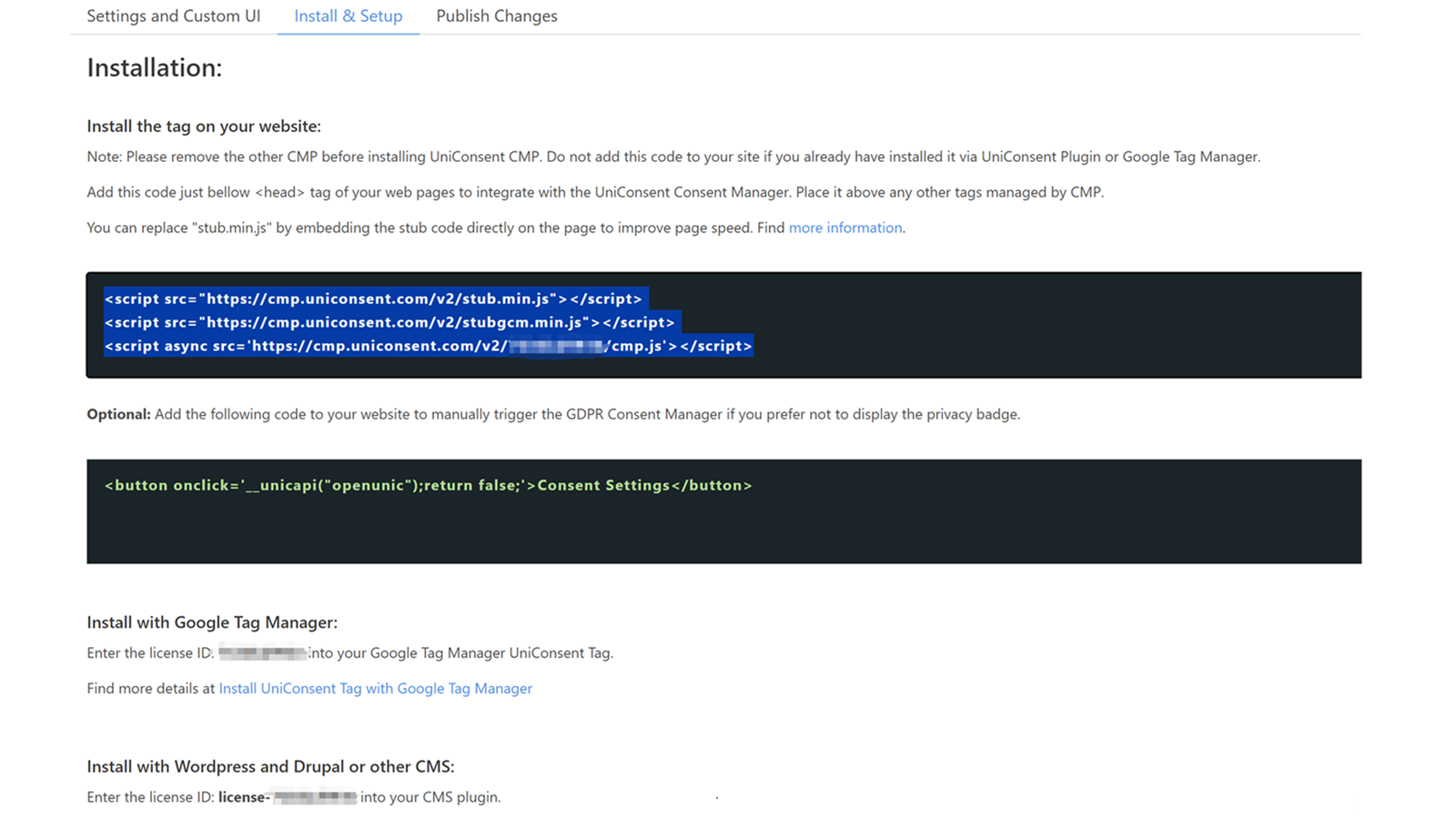
1. Obtén el código de instalación de la CMP de UniConsent
First, log in to your UniConsent account, go to Consent Manager > My Websites, and click Manage.
Second, click Install & Setup and copy the CMP code in the black area.
2. Añade el banner de UniConsent a BigCommerce
To add the banner, log in to your BigCommerce website.
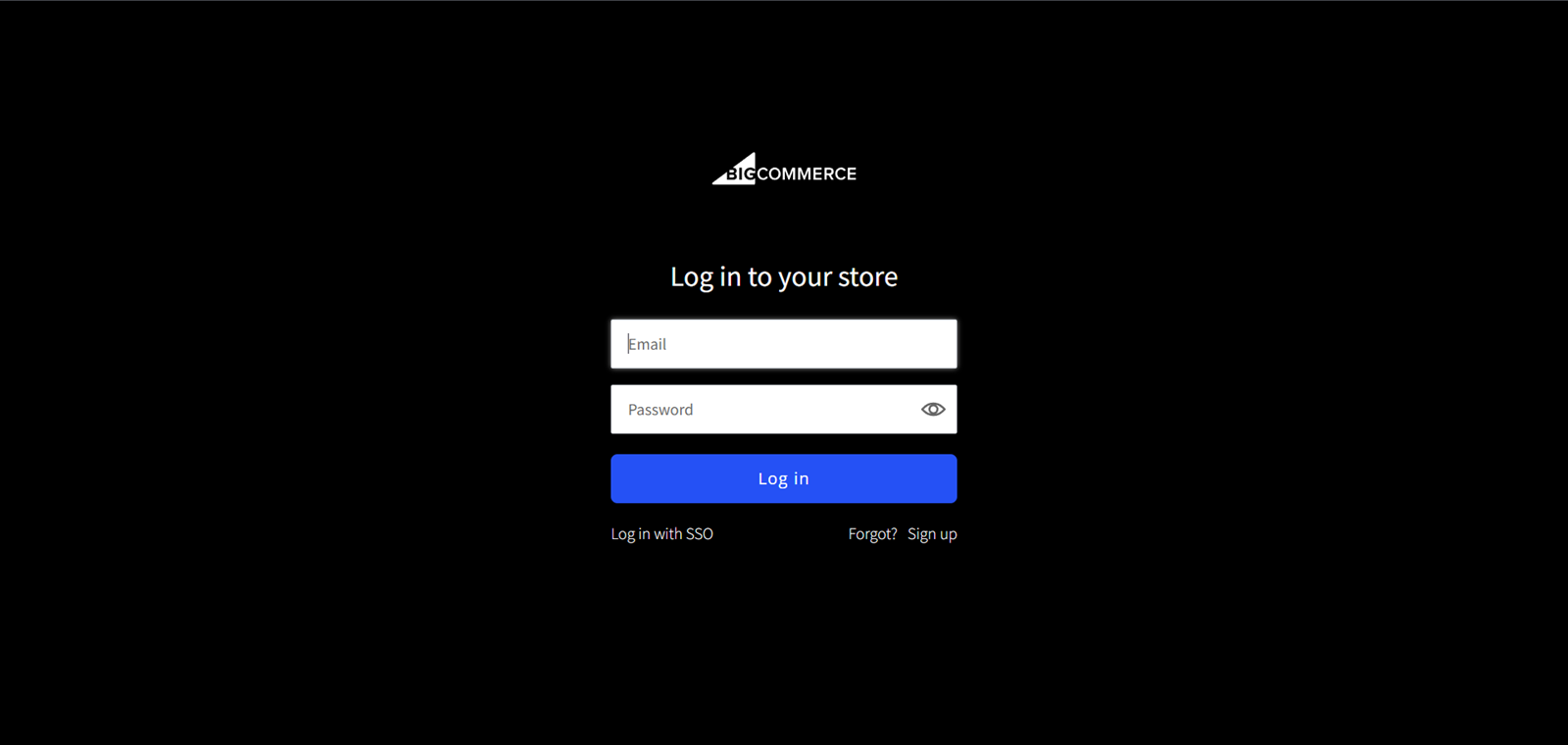
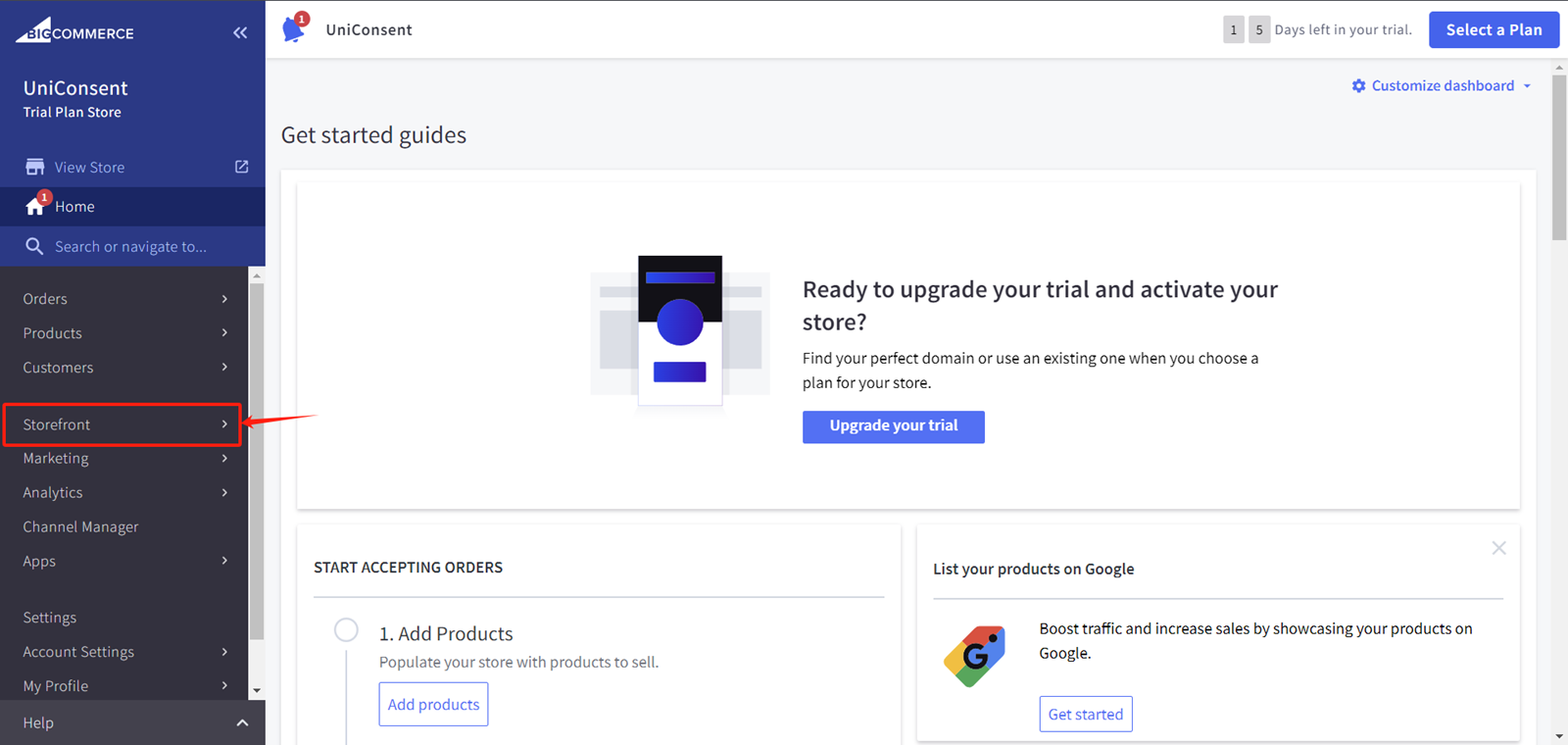
On your BigCommerce dashboard, click on StoreFront from the left sidebar.
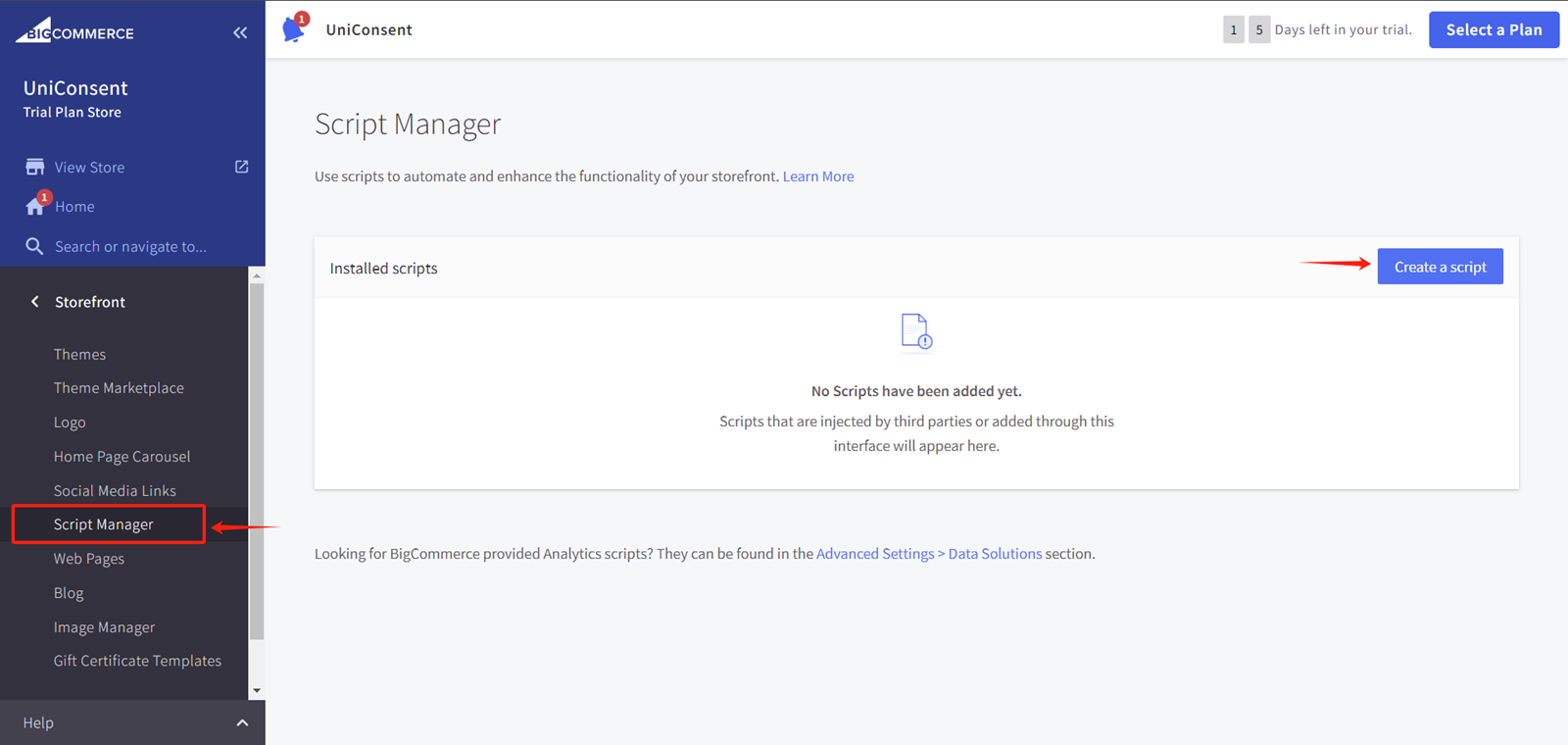
Under StoreFront, select Script Manager.
Under Script Manager, click the Create a Script button on the right side to create a new script for the UniConsent CMP code.
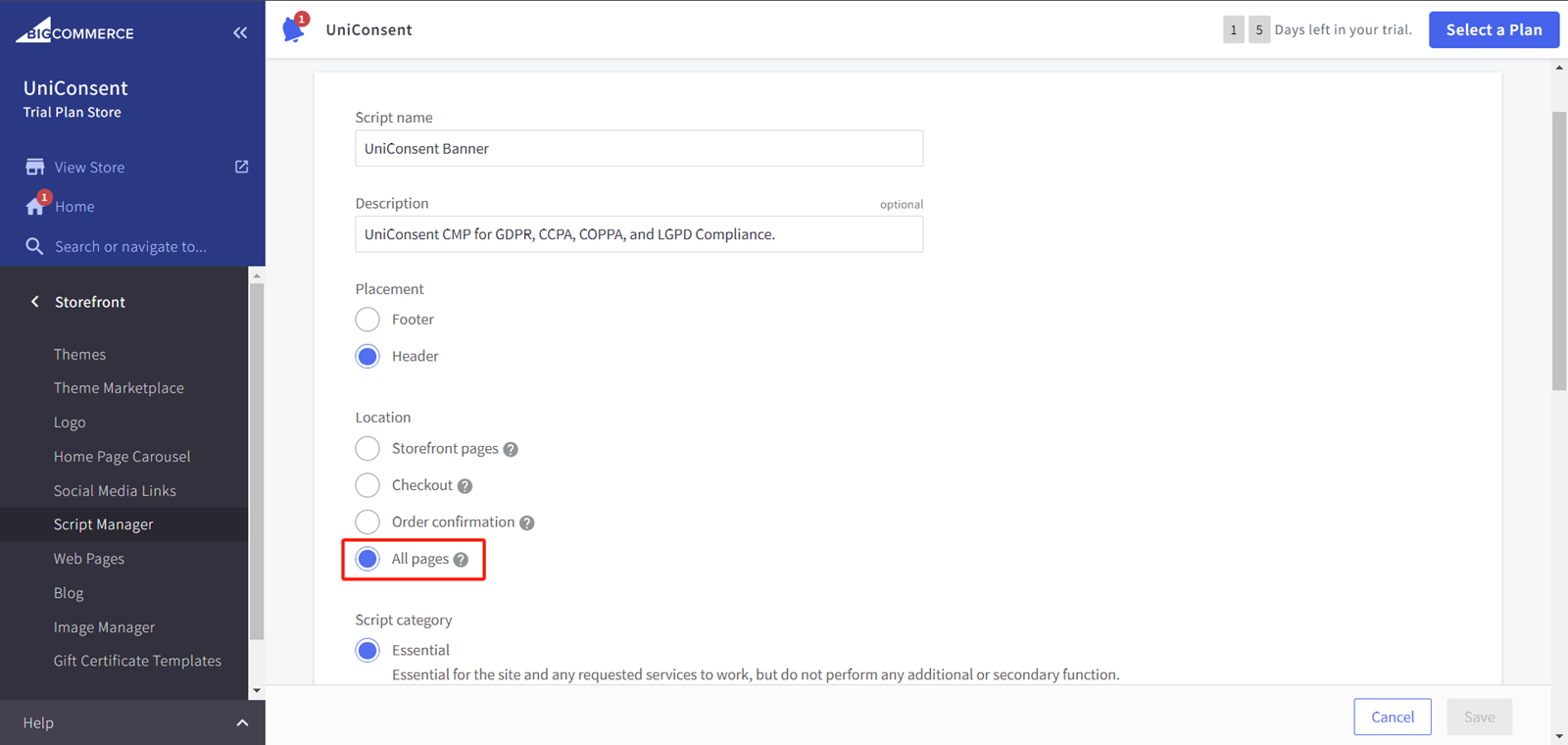
On the script creation page, fill in the "Script Name" and "Description" fields.
E.g., UniConsent Banner, UniConsent CMP for GDPR, etc.
Select the "Placement" where you want the script to be placed, either in the "Header" or "Footer" (e.g., "Header").
Select the "Location" where you want the banner to appear from the available options.
Select "Script" in the "Script Type" section.
Then, paste the UniConsent CMP code into the Script Contents section.
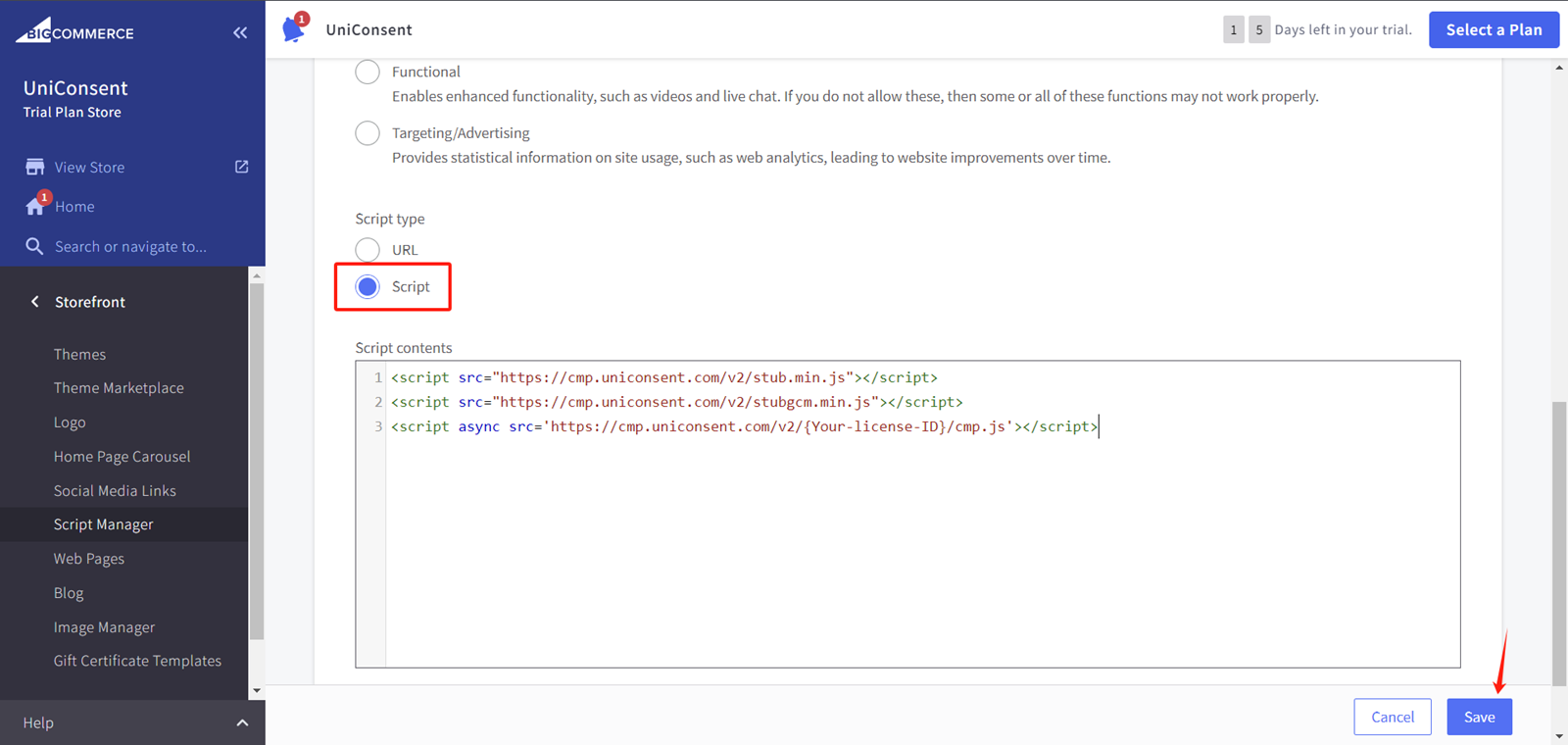
Finally, save your changes to apply the UniConsent banner site-wide on your BigCommerce website.