
BigCommerce Cookie 同意横幅
将 UniConsent 与 BigCommerce 集成,打造合规的电子商务体验。通过我们的无缝集成,轻松满足 GDPR、CCPA、LGPD 和欧盟 Cookie 法的要求。


如何设置
1. 获取 UniConsent CMP 安装代码
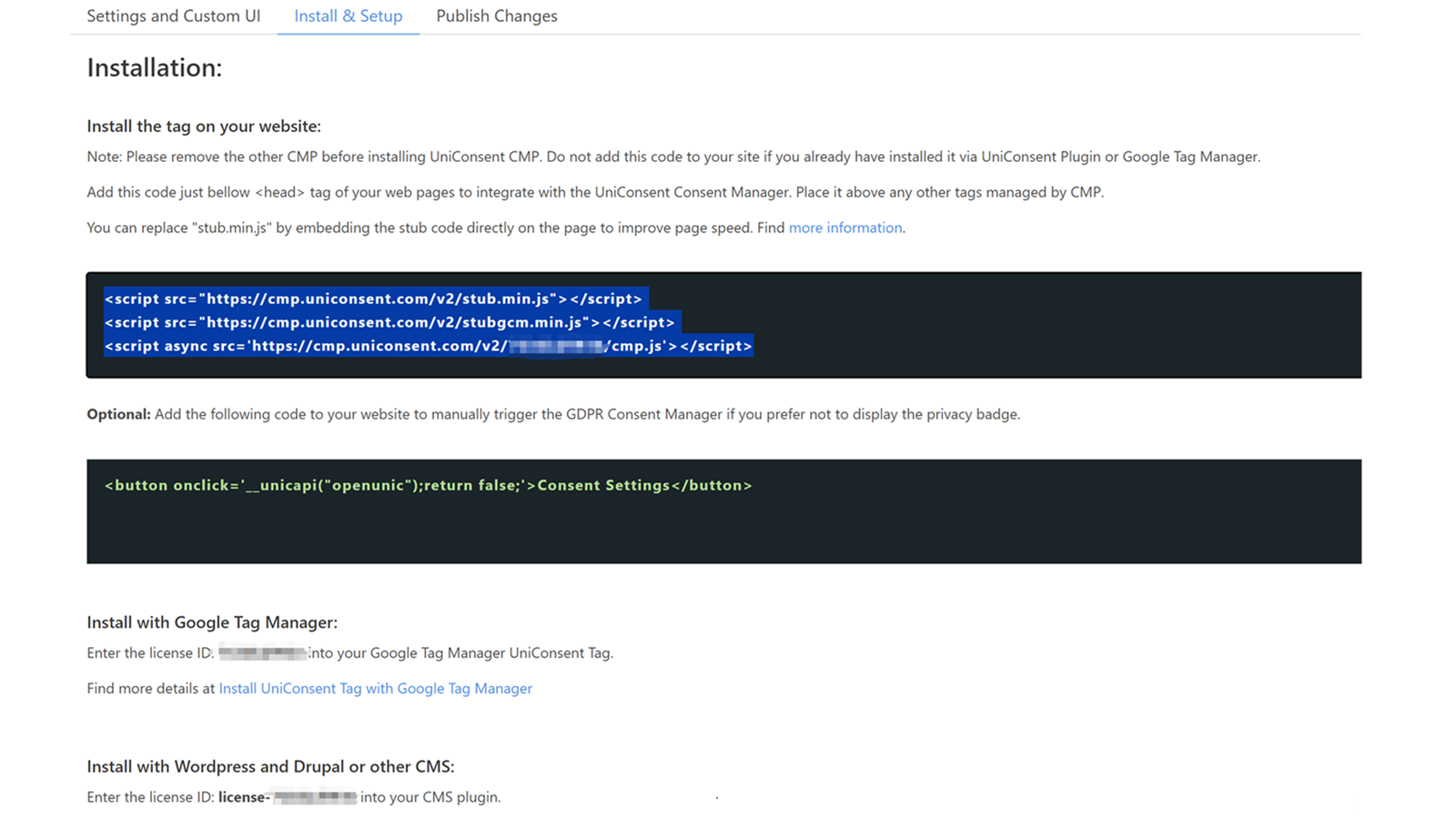
First, log in to your UniConsent account, go to Consent Manager > My Websites, and click Manage.
Second, click Install & Setup and copy the CMP code in the black area.
2. 将 UniConsent 横幅添加到 BigCommerce
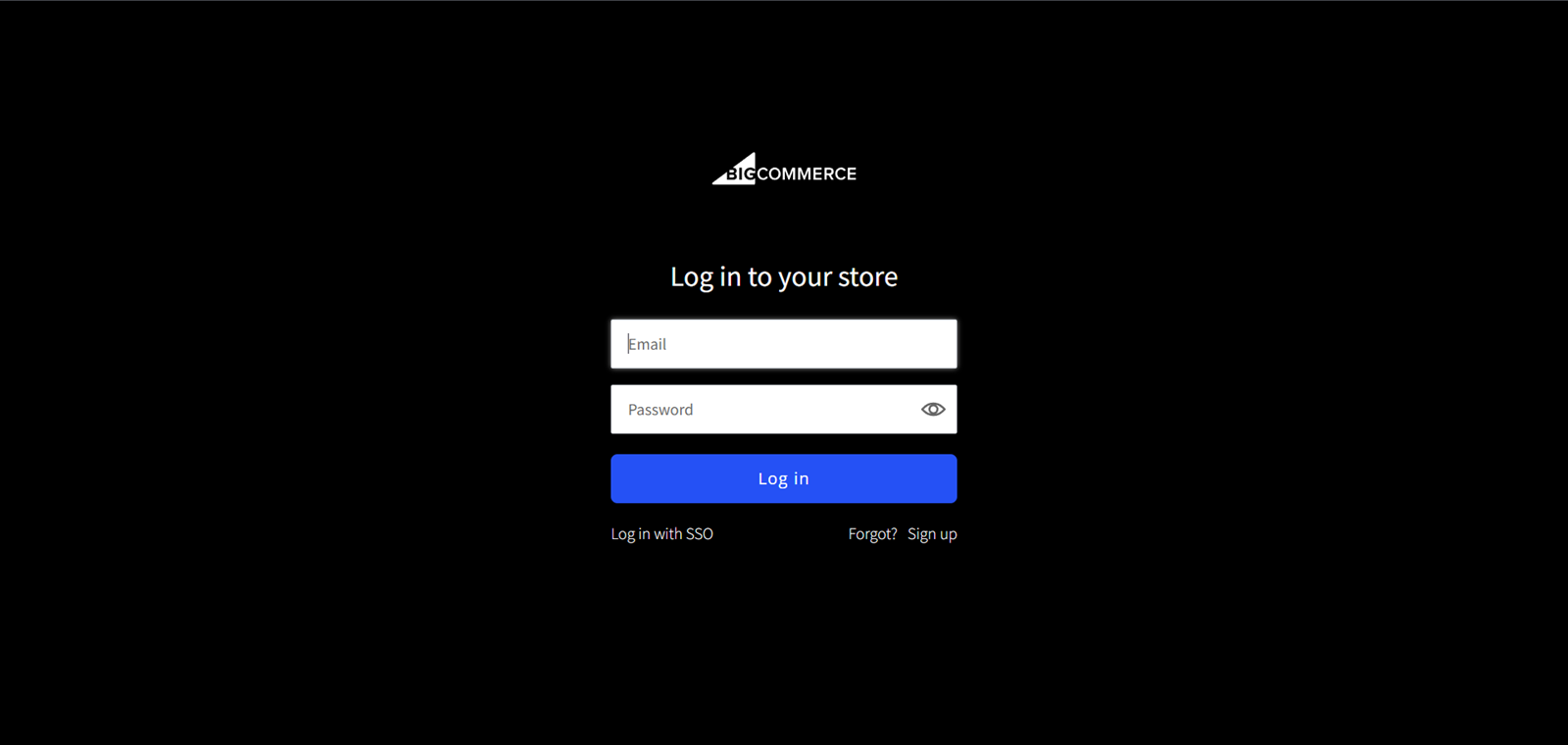
To add the banner, log in to your BigCommerce website.
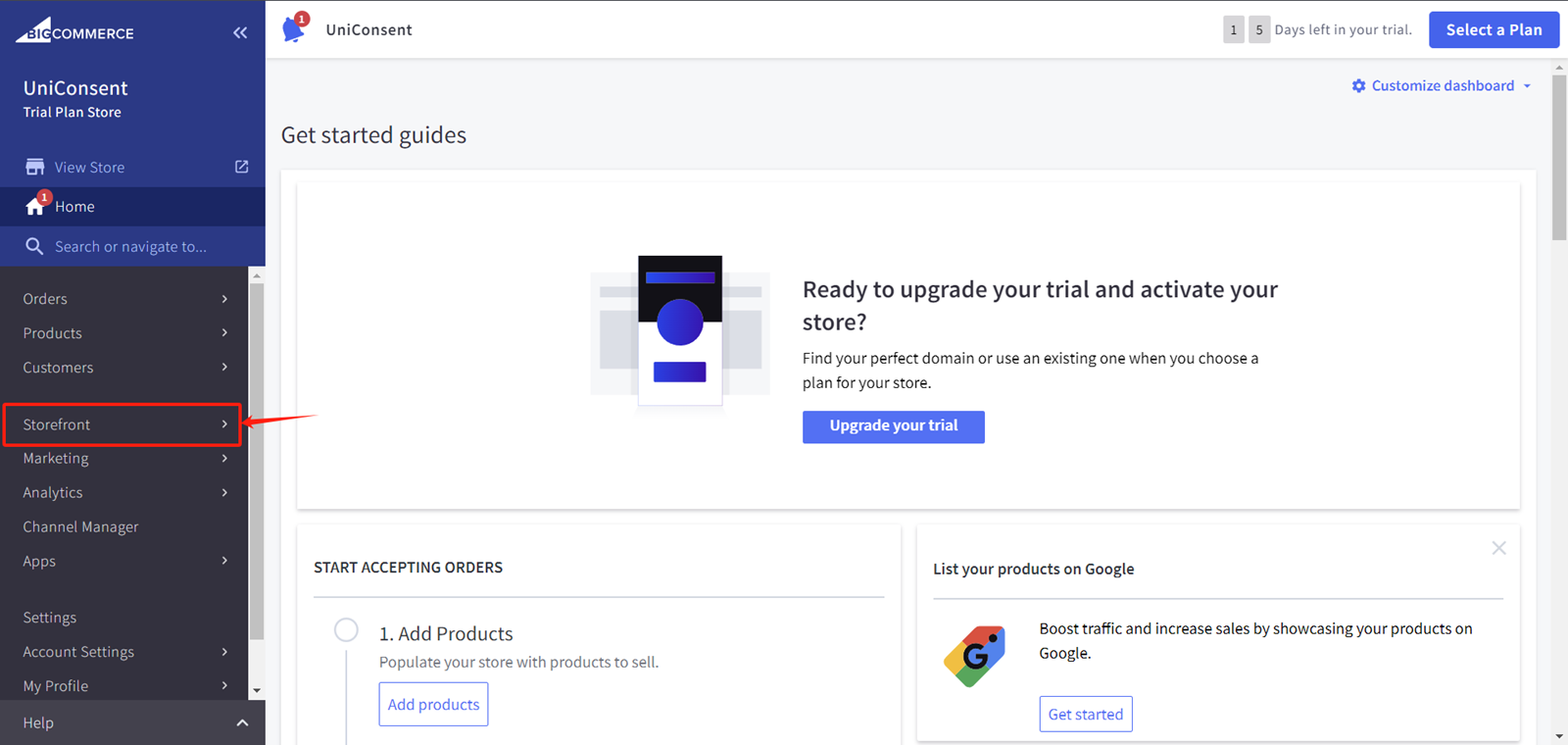
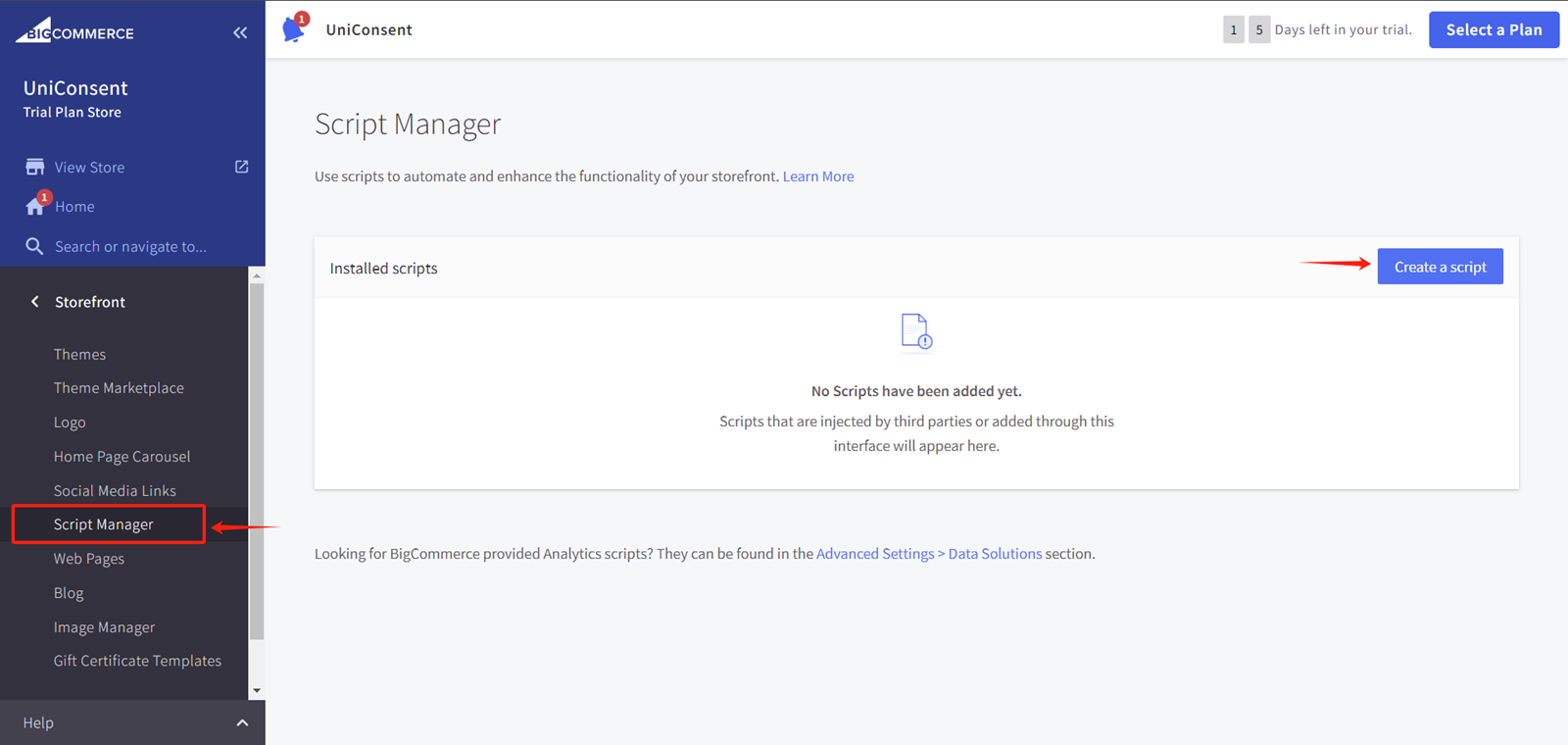
On your BigCommerce dashboard, click on StoreFront from the left sidebar.
Under StoreFront, select Script Manager.
Under Script Manager, click the Create a Script button on the right side to create a new script for the UniConsent CMP code.
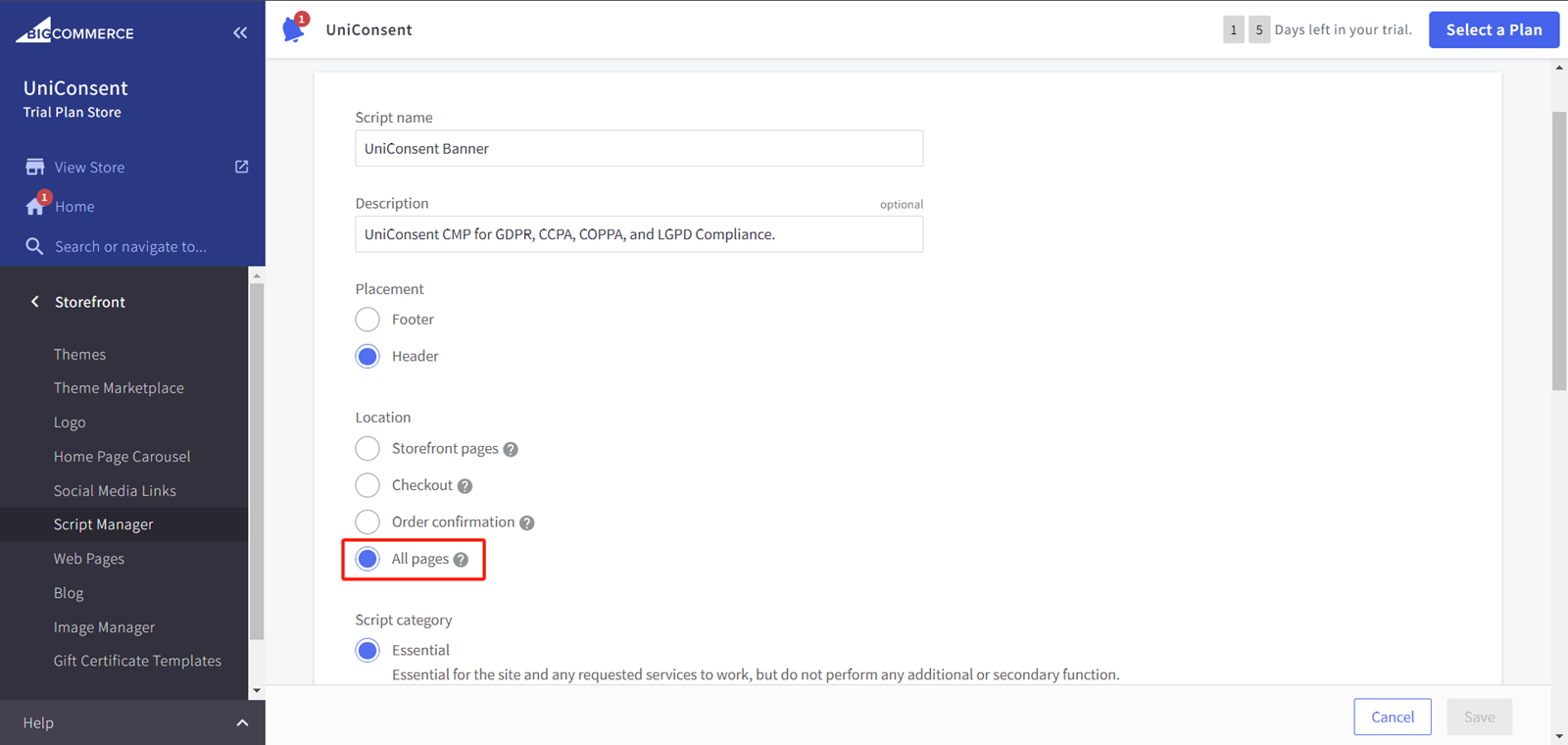
On the script creation page, fill in the "Script Name" and "Description" fields.
E.g., UniConsent Banner, UniConsent CMP for GDPR, etc.
Select the "Placement" where you want the script to be placed, either in the "Header" or "Footer" (e.g., "Header").
Select the "Location" where you want the banner to appear from the available options.
Select "Script" in the "Script Type" section.
Then, paste the UniConsent CMP code into the Script Contents section.
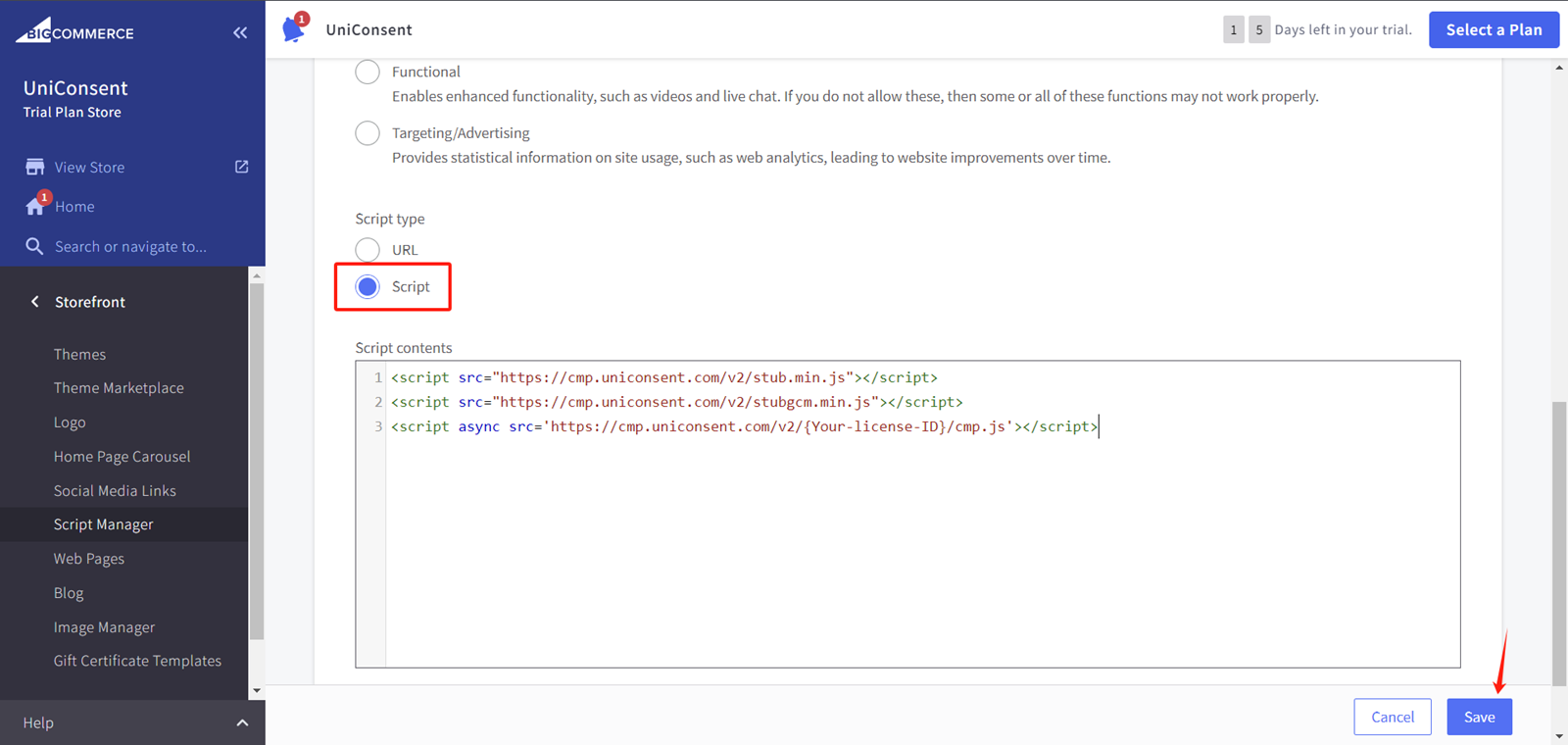
Finally, save your changes to apply the UniConsent banner site-wide on your BigCommerce website.